Skip to content
TechBone
Oppo

Oppo: Save Camera Photos to SD Card

If new photos on your Oppo phone keep filling up internal storage even though a memory card is inserted, the camera app is likely still set to save shots to the device only. This becomes a problem once internal storage runs low and you cannot move existing photos automatically. Switching the preferred save target inside the camera settings fixes this without touching your gallery app.

4 min5 steps
Version

Step by step

1 / 5

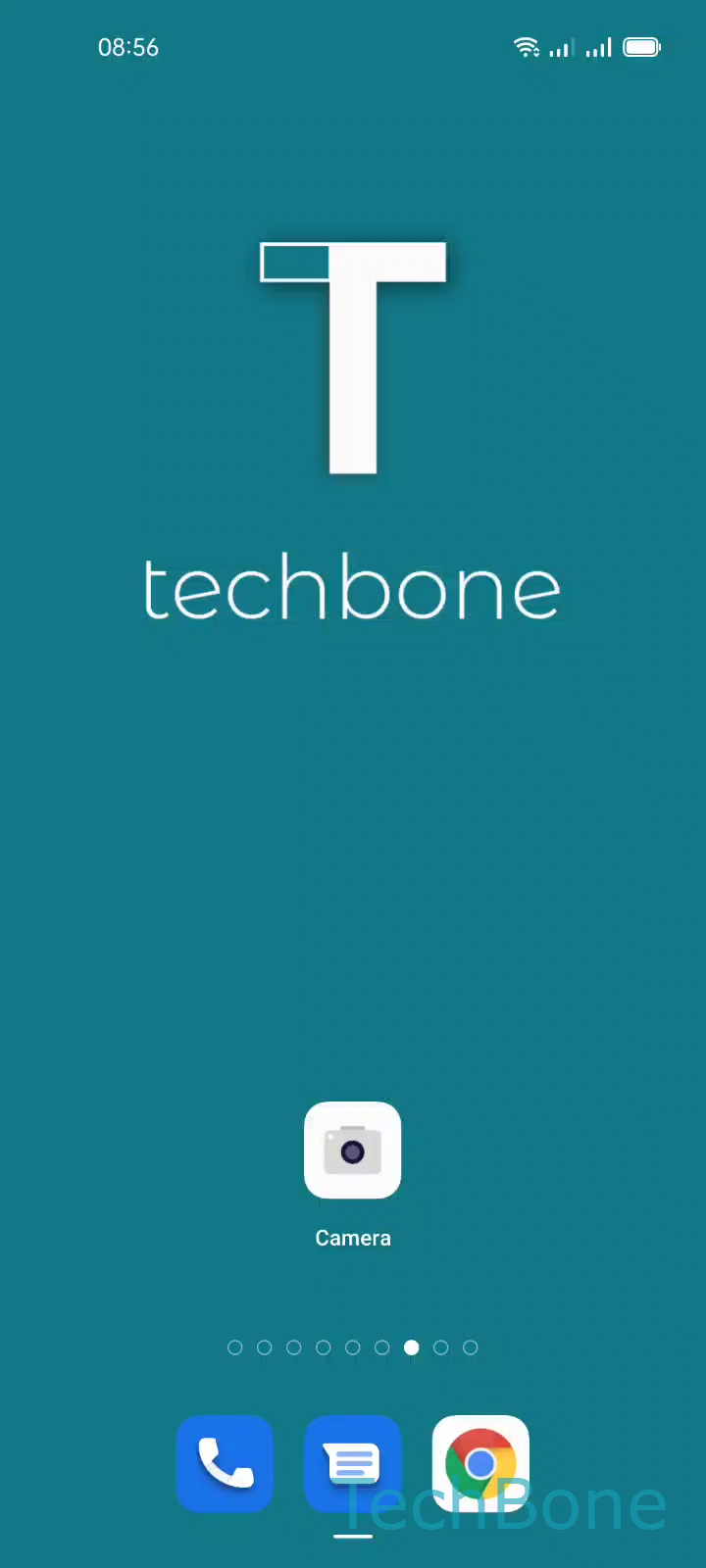
Step 1 of 5: Tap on **Camera**

1

Tap on Camera

Live simulator

Android 11 · Coloros 11
Change Camera Storage Location – Coloros 11: step 1 – Tap on Camera
Tap on Camera
1 / 5

Scroll or use the buttons for the next step

Feedback

Was the guide correct?

Help others: confirm the path or report a problem.

30

Confirmations

Forum verified this path

Oppo

Change Camera Storage Location auf Oppo

On many Oppo phones running Coloros, the camera defaults to internal storage even when a microSD card is inserted. This happens because the 'Save to SD Card Preferred' option is disabled by default, so every photo and video lands on the phone's built-in memory first.

To change this, open Tap on CameraTap on SettingsTap on Advanced settingsEnable or disable Save to SD Card PreferredTap on Turn On. Once enabled, new photos and videos are written directly to the SD card whenever one is inserted.

This setting only affects future captures. Files already stored internally stay where they are and need to be moved manually through the gallery or a file manager.

If your Oppo model has no memory card slot, this option will not appear in the advanced camera settings at all. In that case, freeing up space means deleting unused media or moving files to cloud storage instead.

Frequently asked questions

This option only shows up on Oppo models with a physical memory card slot. If your device does not support external storage, Save to SD Card Preferred will not appear under Advanced settings.