Skip to content
TechBone
Oppo

Oppo: Sync Calendar Manually

If new appointments or updated events on your Oppo phone do not show up right away, the Calendar app has not run its automatic sync yet. This mostly happens with entries added right after you last opened Calendar, since Coloros only refreshes data on launch or on its own schedule. A manual sync fixes this without waiting.

3 min3 steps
VersionAndroid 11 · Coloros 11

Step by step

1 / 3

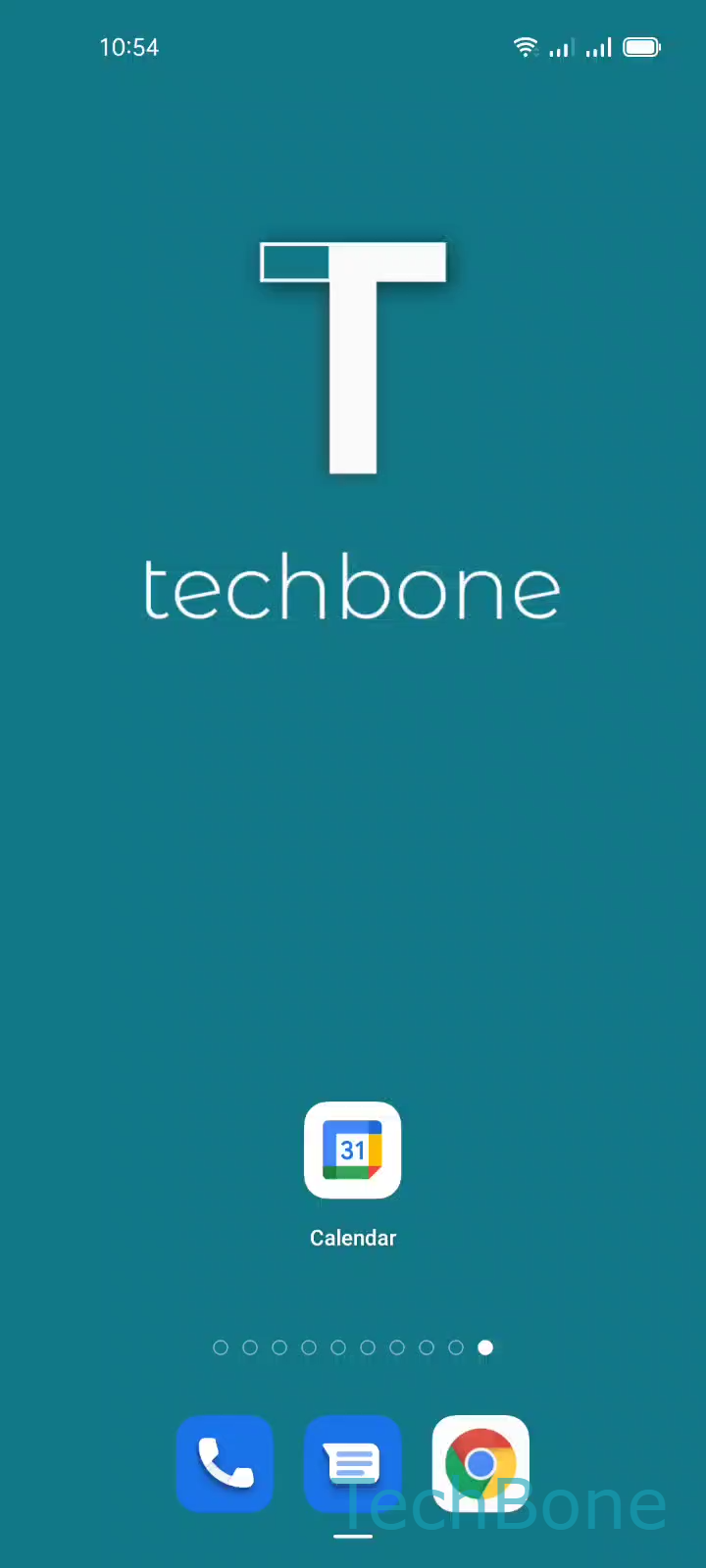
Step 1 of 3: Tap on **Calendar**

1

Tap on Calendar

Live simulator

Android 11 · Coloros 11
Sync Calendar Manually – Coloros 11: step 1 – Tap on Calendar
Tap on Calendar
1 / 3

Scroll or use the buttons for the next step

Feedback

Was the guide correct?

Help others: confirm the path or report a problem.

35

Confirmations

Forum verified this path

Oppo

Sync Calendar Manually auf Oppo

Coloros syncs your Calendar app automatically each time you open it, pulling changes from your Google account or other linked calendars in the background.

If you just edited an event on another device, that update might not reach your Oppo phone right away, because sync runs on a schedule and not instantly.

To force a refresh, open Calendar, tap on Open the Menu, then select Tap on Refresh. This pulls the latest data from your connected accounts immediately, without waiting for the next scheduled sync.

Use this manual refresh when you need to see a change right now, for example before a meeting or when checking if a shared invite arrived.

If entries still do not appear after a manual refresh, check whether the calendar account itself is signed in and has sync enabled in your account settings. A missing or disabled account is a common reason why manual refresh does not fix stale calendar data.

Frequently asked questions

Automatic sync mainly triggers when you open the Calendar app or when the scheduled background sync runs. If an update happens between those moments, it will not show up until the next automatic check or a manual refresh.