Skip to content
TechBone
Oppo

Oppo: Uninstall an App via App Management

Long-pressing an app icon on your Oppo home screen and tapping Uninstall does not always work, especially if the shortcut sits inside a folder or has been removed from the home screen entirely. In that case the quick gesture method fails and you need a menu that lists every installed app regardless of where its icon lives. The App management section in Settings covers exactly that gap.

5 min6 steps
Version

Step by step

1 / 6

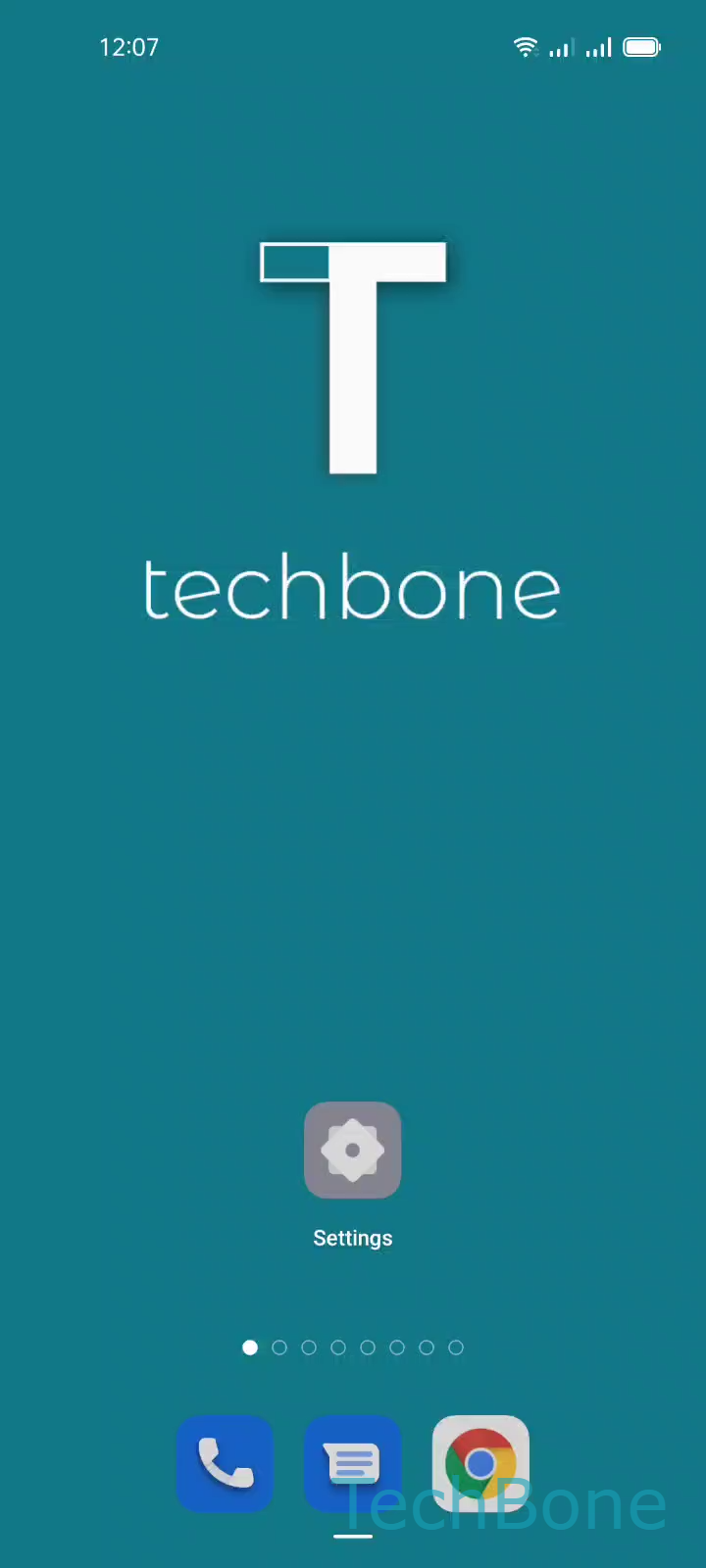
Step 1 of 6: Tap on **Settings**

1

Tap on Settings

Live simulator

Android 11 · Coloros 11
Uninstall an App via Settings – Coloros 11: step 1 – Tap on Settings
Tap on Settings
1 / 6

Scroll or use the buttons for the next step

Feedback

Was the guide correct?

Help others: confirm the path or report a problem.

41

Confirmations

Forum verified this path

Oppo

Uninstall an App via Settings auf Oppo

Oppo phones running Coloros offer two ways to remove an app. The fast route is a long-press on the home screen icon, but that shortcut disappears once an app is buried in a folder or its icon has been unpinned from the home screen. The App management menu solves that, because it lists every installed app in one place, independent of home screen layout.

To reach it, go to Tap on SettingsTap on App managementTap on App list. This list shows all apps installed on the device, including system-adjacent apps that never had a home screen icon. Select the app with Choose an App, then confirm with Tap on Uninstall and finish with Tap on OK.

This method is also the safer choice when an app is misbehaving and the home screen shortcut itself fails to respond to a long-press. Since App management works the same way across Android versions of Coloros, the steps stay valid even after system updates.

Frequently asked questions

Local app data and cache are removed together with the app. Data stored in a cloud account tied to the app, such as a Google or Oppo account, stays untouched and reloads after reinstalling.