Skip to content
TechBone
Realme

Realme: Adjust Screen Brightness Manually

If the screen on your Realme phone feels too dim indoors or too bright at night, automatic brightness is probably overriding what you actually want. Realme UI ties the slider to the ambient light sensor by default, so manual changes can snap back a few seconds later. You can take full control over the brightness level from both the quick settings panel and the display settings.

3 min3 steps
VersionAndroid 11 · Realme UI 2

Step by step

1 / 3

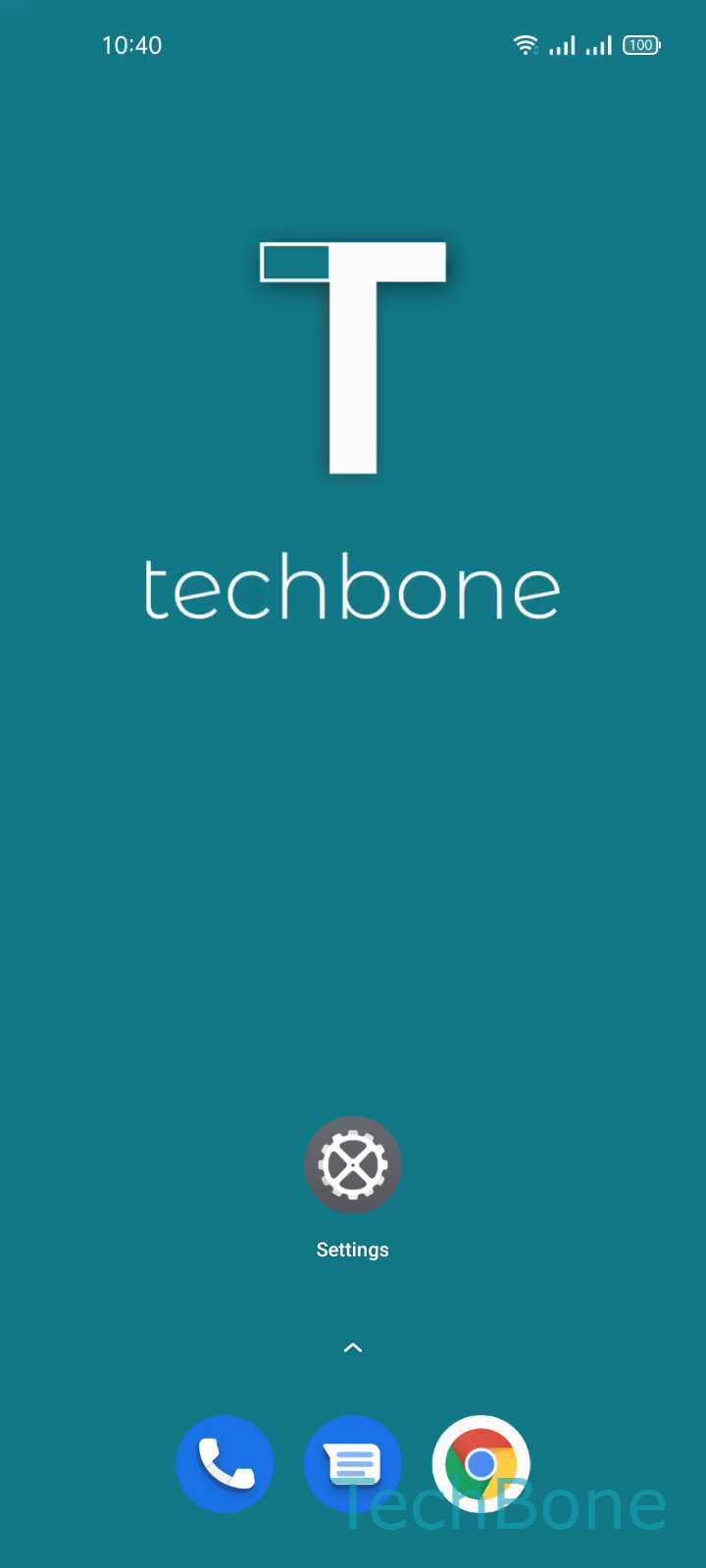
Step 1 of 3: Tap on **Settings**

1

Tap on Settings

Live simulator

Android 11 · Realme UI 2
Adjust Display Brightness – Realme UI 2: step 1 – Tap on Settings
Tap on Settings
1 / 3

Scroll or use the buttons for the next step

Feedback

Was the guide correct?

Help others: confirm the path or report a problem.

95

Confirmations

Forum verified this path

Realme

Adjust Display Brightness auf Realme

Realme UI links screen brightness to the ambient light sensor by default. That is why the slider sometimes moves on its own or snaps back after you drag it manually, especially when Auto brightness is switched on.

To set the brightness yourself, open SettingsDisplay & brightness and drag the slider to the level you want. The same slider is also available directly from the quick settings panel, so you do not need to open the app every time you want a quick adjustment.

If Auto brightness stays enabled, the slider acts more like an offset: the system still reacts to light changes, but starts from the position you set. Turning Auto brightness off gives you a fixed value that never changes on its own, which is useful in stable lighting such as an office, but can drain the battery faster in bright sunlight since you have to raise it manually.

If the screen still looks wrong after adjusting the slider, check whether a battery saver mode or a color filter is active, since both can dim or shift the display independently of the brightness setting.

Frequently asked questions

No. Manually dragging the slider in SettingsDisplay & brightness only sets a starting point. Auto brightness keeps adjusting from there unless you switch it off separately in the same menu.