Skip to content
TechBone
Realme

Realme: Create a Local Backup on Your Phone

If you want a backup that does not depend on a Google or cloud account, Realme UI lets you save one directly to internal storage. This local backup only includes the data types you actively select, so you decide whether photos, messages, apps, or contacts are included. It stays useful when you are about to reset the phone or hand it over for repair and want a safety copy that is not tied to Wi-Fi or an internet connection.

6 min7 steps
VersionAndroid 11 · Realme UI 2

Step by step

1 / 7

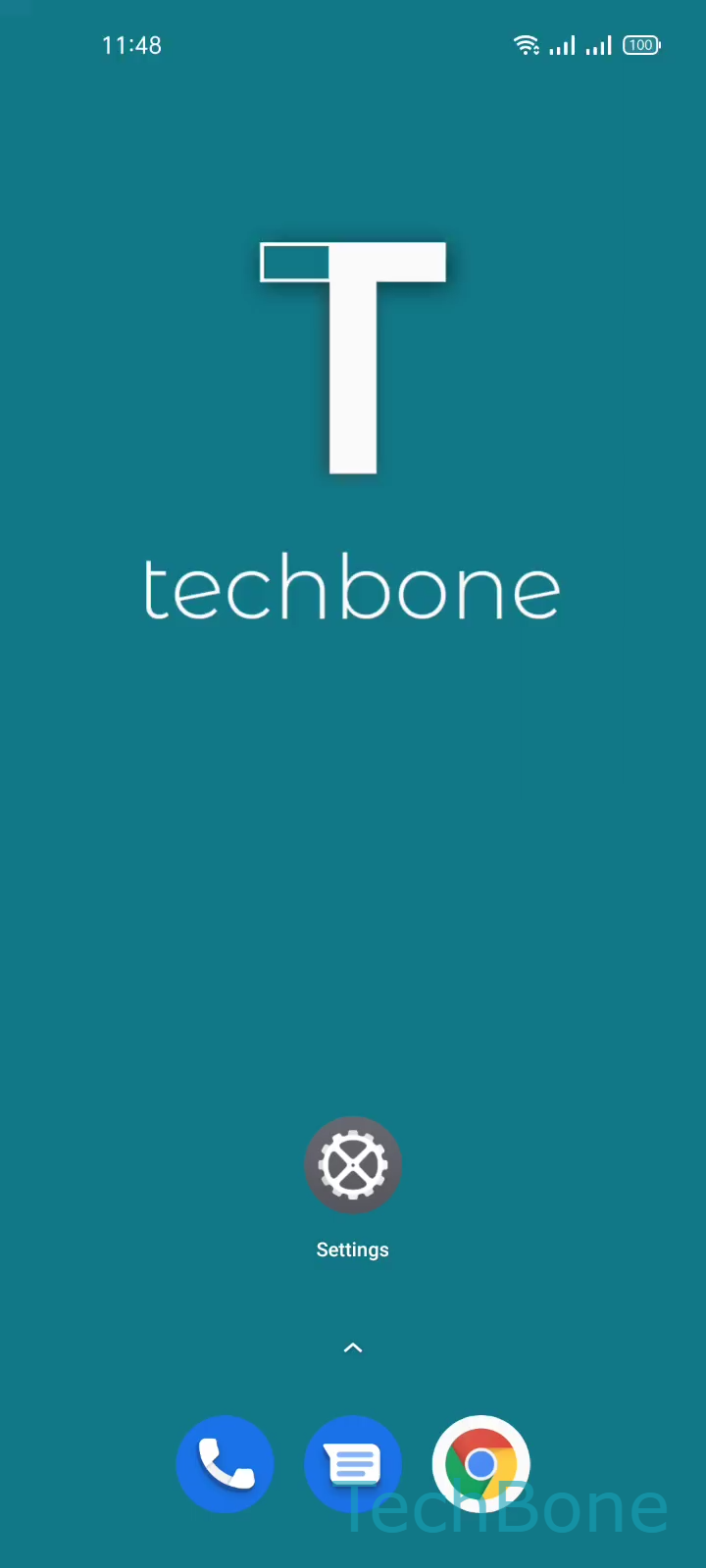
Step 1 of 7: Tap on **Settings**

1

Tap on Settings

Live simulator

Android 11 · Realme UI 2
Create a Local Backup – Realme UI 2: step 1 – Tap on Settings
Tap on Settings
1 / 7

Scroll or use the buttons for the next step

Feedback

Was the guide correct?

Help others: confirm the path or report a problem.

82

Confirmations

Forum verified this path

Realme

Create a Local Backup auf Realme

Realme UI stores a local backup directly on your phone, so the copy never leaves internal storage. This matters if you do not want to link a Google account or rely on a stable internet connection before a reset, a factory wipe, or a repair.

The feature sits under Tap on SettingsTap on Additional settingsTap on Back up and resetTap on Back up & restoreTap on Local backupTap on New backupSelect the Data and tap on Start. Once you reach the selection screen, review every suggested category before you tap Start.

You can deselect categories you do not need, for example large media folders, and keep only contacts, messages, or app data. This keeps the backup file smaller and the process faster.

A local backup is not a substitute for a cloud backup if your phone gets lost or damaged, since the file stays on the same storage that could fail or get wiped. For that scenario, a cloud or PC backup is the safer complement.

Once the backup finishes, it stays available under the same Local backup menu, ready for restore whenever you need it.

Frequently asked questions

It is saved in internal storage rather than on a SIM or removable card, inside the folder used by Local backup. Check the storage overview if space feels tight after creating one.