
Skip to content
TechBone
Realme

Realme: Show or Hide the Status Bar Clock

The clock in the top left corner of the status bar stays visible on every Realme phone by default. Some users find it unnecessary and want more room for notification icons, while others want the extra precision of seconds. Realme UI lets you switch between a plain hours-and-minutes display, a version with seconds, or no clock at all.

3 min4 steps
VersionAndroid 11 · Realme UI 2

Step by step

1 / 4

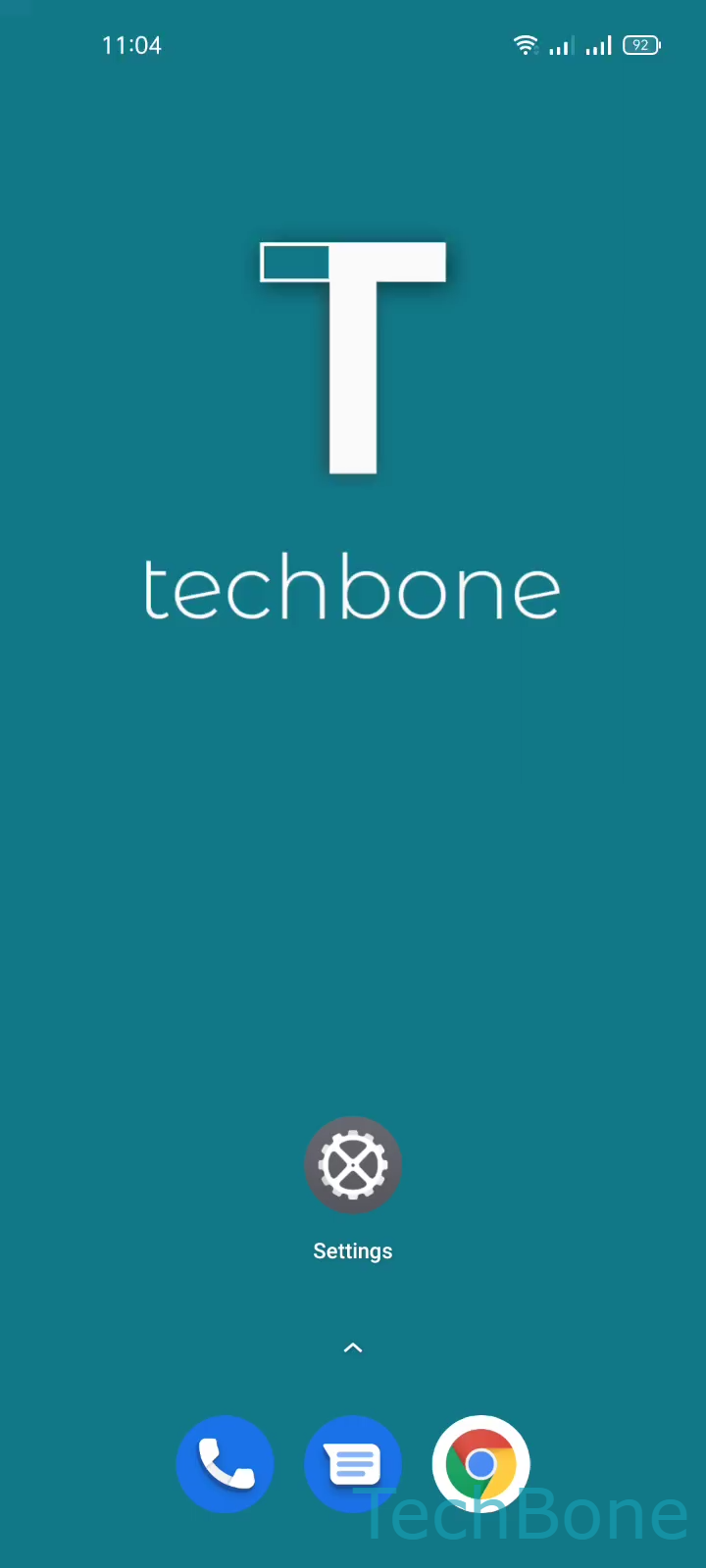
Step 1 of 4: Tap on **Settings**

1

Tap on Settings

Live simulator

Android 11 · Realme UI 2
Show or Hide the Status Bar Clock – Realme UI 2: step 1 – Tap on Settings
Tap on Settings
1 / 4

Scroll or use the buttons for the next step

Feedback

Was the guide correct?

Help others: confirm the path or report a problem.

77

Confirmations

Forum verified this path

Realme

Show or Hide the Status Bar Clock auf Realme

The status bar clock on Realme phones is controlled by a dedicated system setting, separate from the lock screen clock or the Always On Display. Changing it only affects the small time indicator shown while you use apps, not the larger clock on your lock screen.

To adjust it, go to SettingsNotifications & status barTime. There you can choose between Show hours and minutes, Show hours, minutes, and seconds, or Do not show.

Adding seconds can be useful if you time tasks throughout the day, but it also means the clock refreshes constantly, which some people find distracting. Removing the clock entirely frees up a small amount of space in the status bar, which can help if you already have many notification icons showing.

If you actually want to hide the lock screen clock or change its style instead of the status bar version, that requires a different setting under the lock screen or Always On Display options, not this menu.

Frequently asked questions

No. The setting under SettingsNotifications & status barTime only controls the small clock shown in the status bar while using apps. The lock screen clock is managed separately.