Skip to content
TechBone
Samsung

Samsung: Change Always On Display Brightness

If the Always On Display looks too dim or too bright at a glance, Auto brightness might be overriding your manual settings. Samsung ties AOD brightness to ambient light unless you switch to manual control, which can leave the clock hard to read in bright rooms or too glaring at night.

4 min5 steps
Version

Step by step

1 / 5

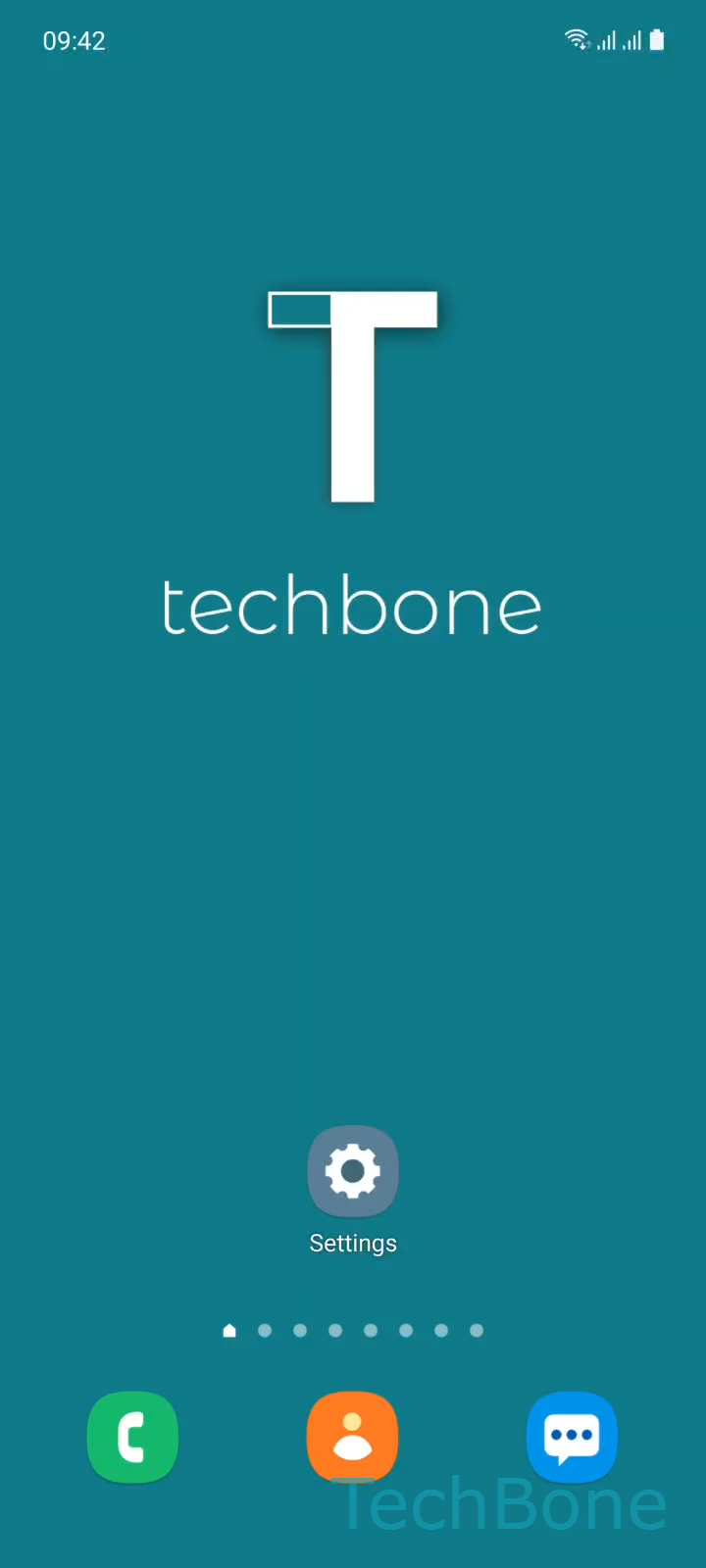
Step 1 of 5: Tap on **Settings**

1

Tap on Settings

Live simulator

Android 11 · One UI 3
Adjust Always On Display Brightness – One UI 3: step 1 – Tap on Settings
Tap on Settings
1 / 5

Scroll or use the buttons for the next step

Feedback

Was the guide correct?

Help others: confirm the path or report a problem.

26

Confirmations

Forum verified this path

Samsung

Adjust Always On Display Brightness auf Samsung

The Always On Display on Samsung phones normally adjusts its brightness automatically, using the same light sensor that controls the main screen. This keeps the clock and notifications visible without draining extra battery in bright rooms or at night.

When Auto brightness stays active, you cannot set a fixed brightness level for the Always On Display. The system decides for you, which can leave the display too dim in direct sunlight or too bright in a dark bedroom.

To take control manually, open SettingsLock screenAlways On DisplayTurn Off Auto brightness. Once Auto brightness is off, swipe left or right on the brightness bar to set your preferred level.

Manual brightness stays fixed until you change it again or turn Auto brightness back on. This works well if you always use your phone in similar lighting, for example at a desk or on a nightstand.

If your surroundings change often, switching back to Auto brightness usually gives a more comfortable result throughout the day, at the cost of losing a persistent fixed brightness value.

Frequently asked questions

Some Samsung software updates restore default display settings, including Auto brightness for the Always On Display under SettingsLock screenAlways On Display. Check the toggle again after a system update.

Compatible devices

Tap your device — opens its hub with matching guides.

Android 11 · One UI 3

No compatible devices are listed for this version.