Skip to content
TechBone
Samsung

Samsung: Resize the Quick Settings Button Grid

If your Samsung quick settings panel feels cramped or only shows a handful of toggles, the button grid is likely still stuck on the default size. Switching to a larger 5x3 layout fits up to 15 shortcuts at once, while 3x3 keeps each tile bigger and easier to tap.

4 min5 steps
VersionAndroid 10 · One UI 2

Step by step

1 / 5

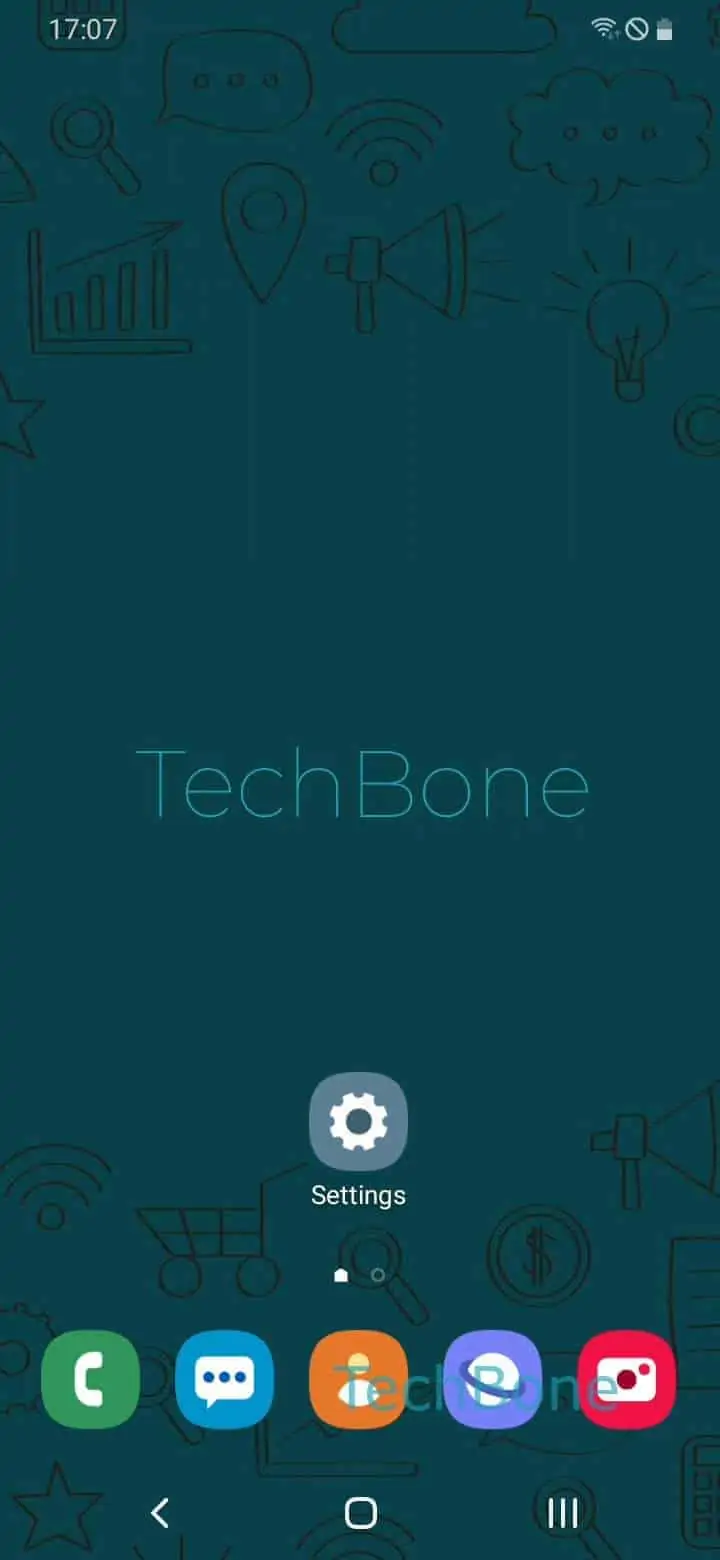
Step 1 of 5: Pull down the **Notification bar**

1

Pull down the Notification bar

Live simulator

Android 10 · One UI 2
Quick Settings Button Grid Size – One UI 2: step 1 – Pull down the Notification bar
Pull down the Notification bar
1 / 5

Scroll or use the buttons for the next step

Feedback

Was the guide correct?

Help others: confirm the path or report a problem.

62

Confirmations

Forum verified this path

Samsung

Quick Settings Button Grid Size auf Samsung

The button grid controls how many quick settings tiles fit into the notification panel on Samsung phones. By default it sits on a middle size, which limits visible toggles and often forces you to swipe just to reach controls like Wi-Fi calling, NFC or screen recording.

The grid size is not adjusted through the main Settings app but from inside the notification panel itself. Pull the status bar down fully to reveal the quick settings view, then open the panel menu.

To change it: Pull down the Notification barOpen the menuTap on Button gridChoose desired GridConfirm with OK.

A 5x3 grid shows up to 15 tiles on one screen but shrinks every icon and label, which can make tapping less precise on smaller displays. A 3x3 grid keeps tiles large and easy to hit, though less-used toggles then move to a second page.

If the panel still looks unchanged after confirming, a custom launcher or an installed theme may be overriding the layout. Switching back to the default theme or launcher usually restores the selected grid.

Frequently asked questions

No. The button grid only changes the quick settings panel layout. The home screen and app drawer grids are set separately in the display or home screen options.

Compatible devices

Tap your device — opens its hub with matching guides.

Android 10 · One UI 2

No compatible devices are listed for this version.