Skip to content
TechBone
Samsung

Samsung: Change the Always On Display Clock Style

If the Always On Display on your Samsung phone still shows the plain default clock, you probably haven't opened the Clock style menu yet. One UI offers several analog and digital designs, adjustable colors, and an optional calendar line under the time. Picking the wrong style can hurt readability in daylight or use more battery than needed on an OLED screen.

5 min6 steps
Version

Step by step

1 / 6

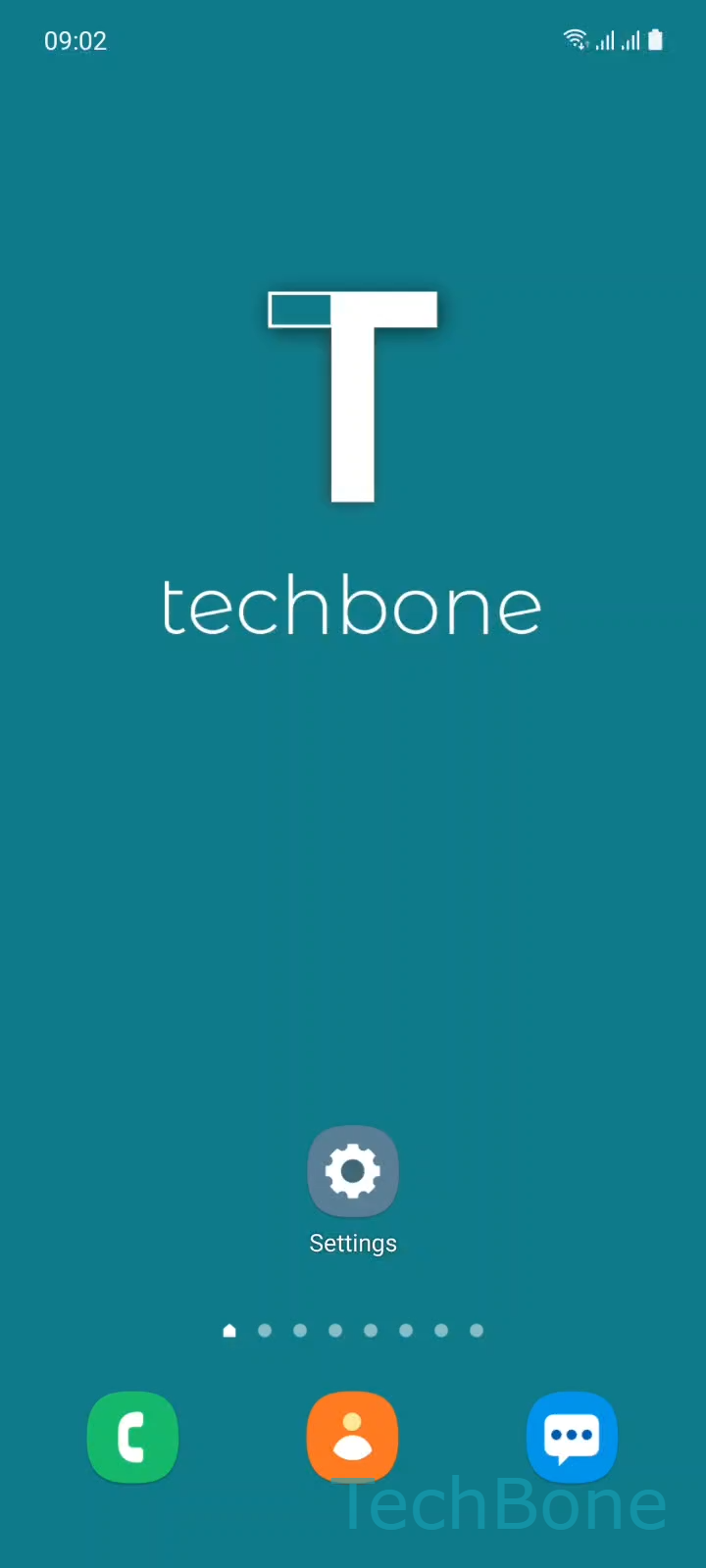
Step 1 of 6: Tap on **Settings**

1

Tap on Settings

Live simulator

Android 11 · One UI 3
Change Always On Display Clock Style – One UI 3: step 1 – Tap on Settings
Tap on Settings
1 / 6

Scroll or use the buttons for the next step

Feedback

Was the guide correct?

Help others: confirm the path or report a problem.

72

Confirmations

Forum verified this path

Samsung

Change Always On Display Clock Style auf Samsung

The Always On Display keeps a reduced version of your lock screen visible while the phone stays locked, and the clock shown there is controlled separately from the clock on your regular lock screen.

By default, Samsung shows a plain digital clock, but the Clock style menu inside One UI holds several analog and digital layouts, individual color options and an optional calendar line placed under the time.

To switch it, open Tap on SettingsTap on Lock screenTap on Always On DisplayTap on Clock styleSet the Clock style and change the ColorTap on Done.

A lighter clock color can be harder to read outdoors in bright sun, while darker or muted tones tend to save more battery on an OLED panel since fewer pixels light up.

If the Clock style option is greyed out or the whole preview stays blank, check first whether Always On Display itself is switched on in the same Lock screen menu before troubleshooting the clock design.

An analog face combined with a busy background image can reduce legibility at night, so test any new style under both dim and bright conditions before keeping it.

Frequently asked questions

Make sure you tap Done after picking the style and color inside Clock style. If the setting still resets, check whether a recent software update reset Always On Display preferences and reapply the style once.

Compatible devices

Tap your device — opens its hub with matching guides.

Android 11 · One UI 3

No compatible devices are listed for this version.