
Skip to content
TechBone
Samsung

Samsung: Turn Double Tap to Wake Screen On or Off

If a double tap on the screen does nothing on your Samsung phone, the 'Double tap to turn on/off screen' gesture is probably switched off in Motions and gestures. Some users also find the opposite problem: the screen lights up on its own every time the phone gets tapped in a pocket or bag, which drains the battery faster. Both issues come from the same setting under Advanced features.

3 min4 steps
Version

Step by step

1 / 4

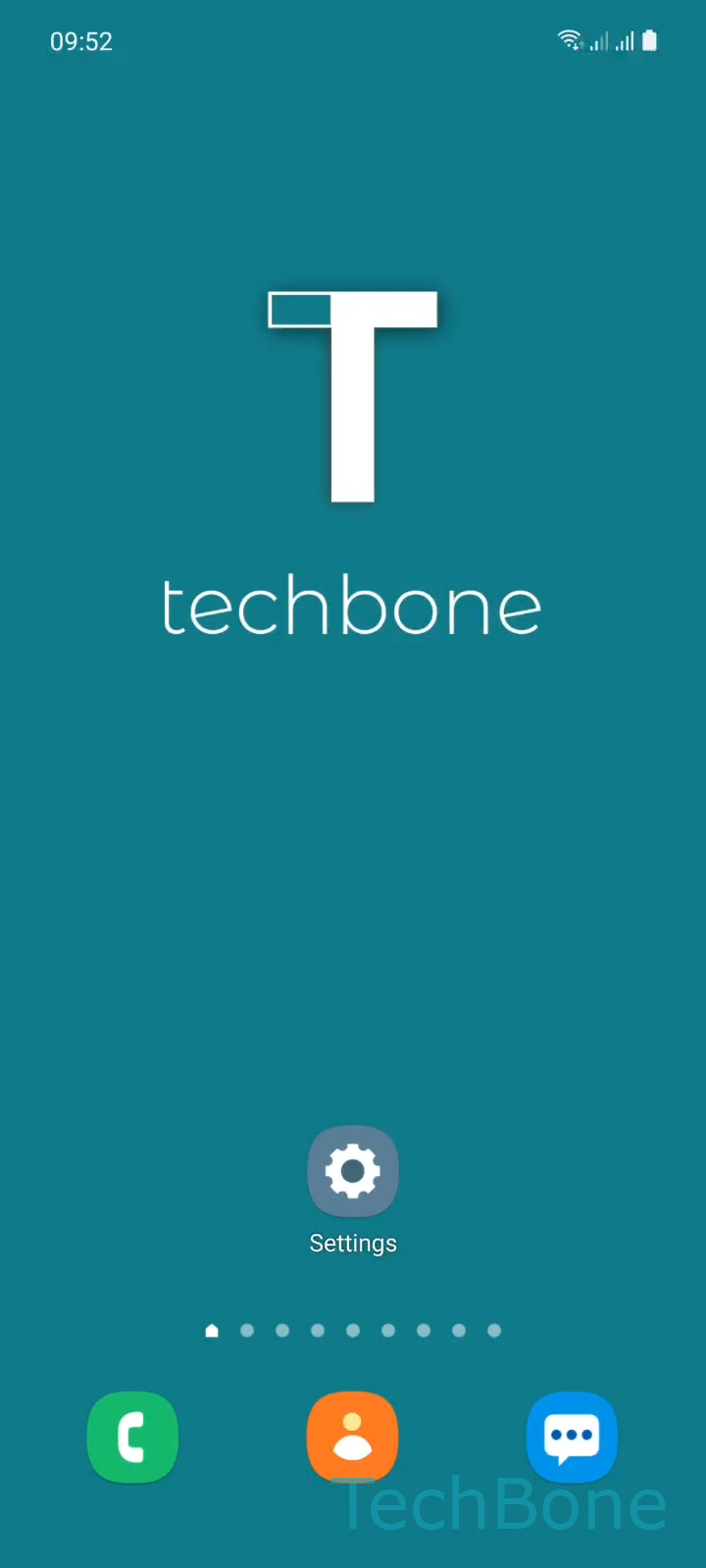
Step 1 of 4: Tap on **Settings**

1

Tap on Settings

Live simulator

Android 11 · One UI 3
Double Tap to Wake Screen On/Off – One UI 3: step 1 – Tap on Settings
Tap on Settings
1 / 4

Scroll or use the buttons for the next step

Feedback

Was the guide correct?

Help others: confirm the path or report a problem.

94

Confirmations

Forum verified this path

Samsung

Double Tap to Wake Screen On/Off auf Samsung

Double tap to turn on/off screen lets you wake or lock your Samsung display by tapping twice on an empty area of the screen, without pressing the side key. On most Samsung phones this gesture is active by default and works from the lock screen, with Always On Display, or even when the screen is completely off.

The setting sits inside the motion and gesture controls, separate from the main display settings. If the double tap does not respond, check first whether the feature got switched off accidentally, since it can be toggled with a single tap.

Where to find the setting

Open the path Tap on SettingsTap on Advanced featuresTap on Motions and gesturesEnable or disable Double tap to turn on/off screen. Turning the switch on activates the gesture, turning it off disables it completely.

Once enabled, the phone reacts to double taps in a defined zone at the top of the screen, so accidental taps lower down are usually ignored. If your phone reacts too often while in a pocket, disabling the gesture is a quick way to save battery and avoid the screen turning on unintentionally.

Frequently asked questions

Yes. The gesture works independently of Always On Display. It reacts on the standard lock screen and on a fully black screen as long as the toggle in Motions and gestures is turned on.

Compatible devices

Tap your device — opens its hub with matching guides.

Android 11 · One UI 3

No compatible devices are listed for this version.