Skip to content
TechBone
Samsung

Samsung: Turn Lock Screen Widgets On or Off

If the music player, next alarm, or calendar no longer shows up on your Samsung lock screen, the Widgets option is likely switched off. Some people want the opposite and disable widgets entirely, since alarms, app info, or playback controls can be visible without unlocking the device. Both directions are controlled from the same lock screen setting.

3 min4 steps
Version

Step by step

1 / 4

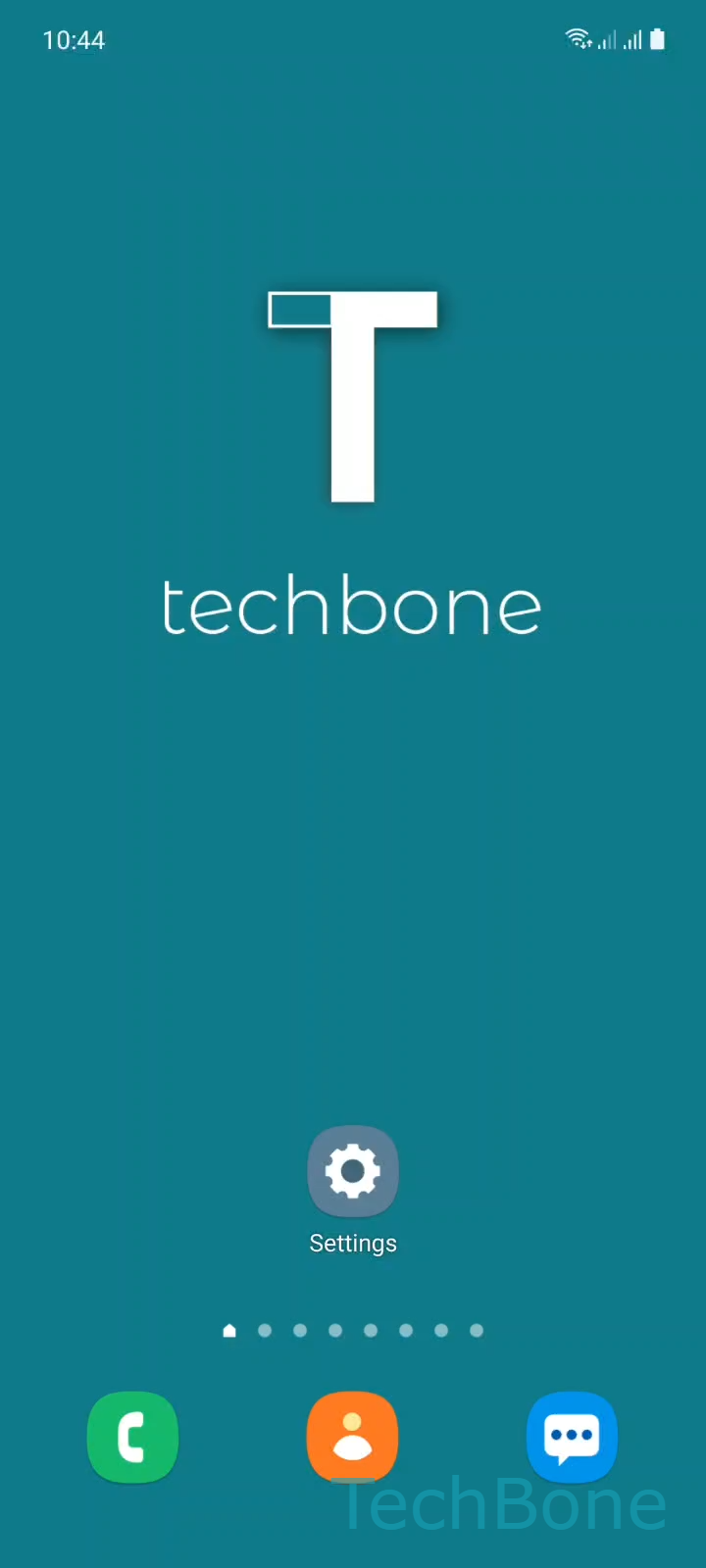
Step 1 of 4: Tap on **Settings**

1

Tap on Settings

Live simulator

Android 11 · One UI 3
Turn On/Off Widgets on Lock Screen – One UI 3: step 1 – Tap on Settings
Tap on Settings
1 / 4

Scroll or use the buttons for the next step

Feedback

Was the guide correct?

Help others: confirm the path or report a problem.

73

Confirmations

Forum verified this path

Samsung

Turn On/Off Widgets on Lock Screen auf Samsung

Widgets on the Samsung lock screen display live information without requiring you to unlock the phone. Typical examples are a compact music player with pause and skip controls, the next active alarm, today's date, or tiles from supported apps. On devices with an Always On Display, the same widgets can appear there as well.

This can be convenient, but it also means the information stays visible to anyone who picks up the phone. If you share your device occasionally or prefer a minimal lock screen, turning widgets off removes that data from view. If you rely on quick controls like skipping a song without unlocking, keeping widgets on saves time.

The setting sits in the lock screen options and controls every widget individually, so you don't have to disable the whole feature to remove just one.

Menu path

SettingsLock screenWidgets ➔ turn individual widgets on or off.

Each widget has its own switch on this screen. Turning one off removes it from both the lock screen and the Always On Display, if the device supports widgets there. The change applies immediately, no restart needed.

Frequently asked questions

Some Samsung models or software versions place widget controls under a slightly different name, but the path stays close to SettingsLock screenWidgets. If the entry is missing entirely, the device or current lock screen style does not support this feature.

Compatible devices

Tap your device — opens its hub with matching guides.

Android 11 · One UI 3

No compatible devices are listed for this version.