Skip to content
TechBone
Samsung

Samsung: Switch Always On Display Between Portrait and Landscape

On Samsung phones, the Always On Display defaults to portrait orientation even when the phone sits flat in a stand, car mount, or dock turned sideways. That leaves the clock and icons rotated on their side instead of readable across the screen. The fix sits in a setting most people never open because it is separate from the normal screen rotation toggle.

4 min5 steps
Version

Step by step

1 / 5

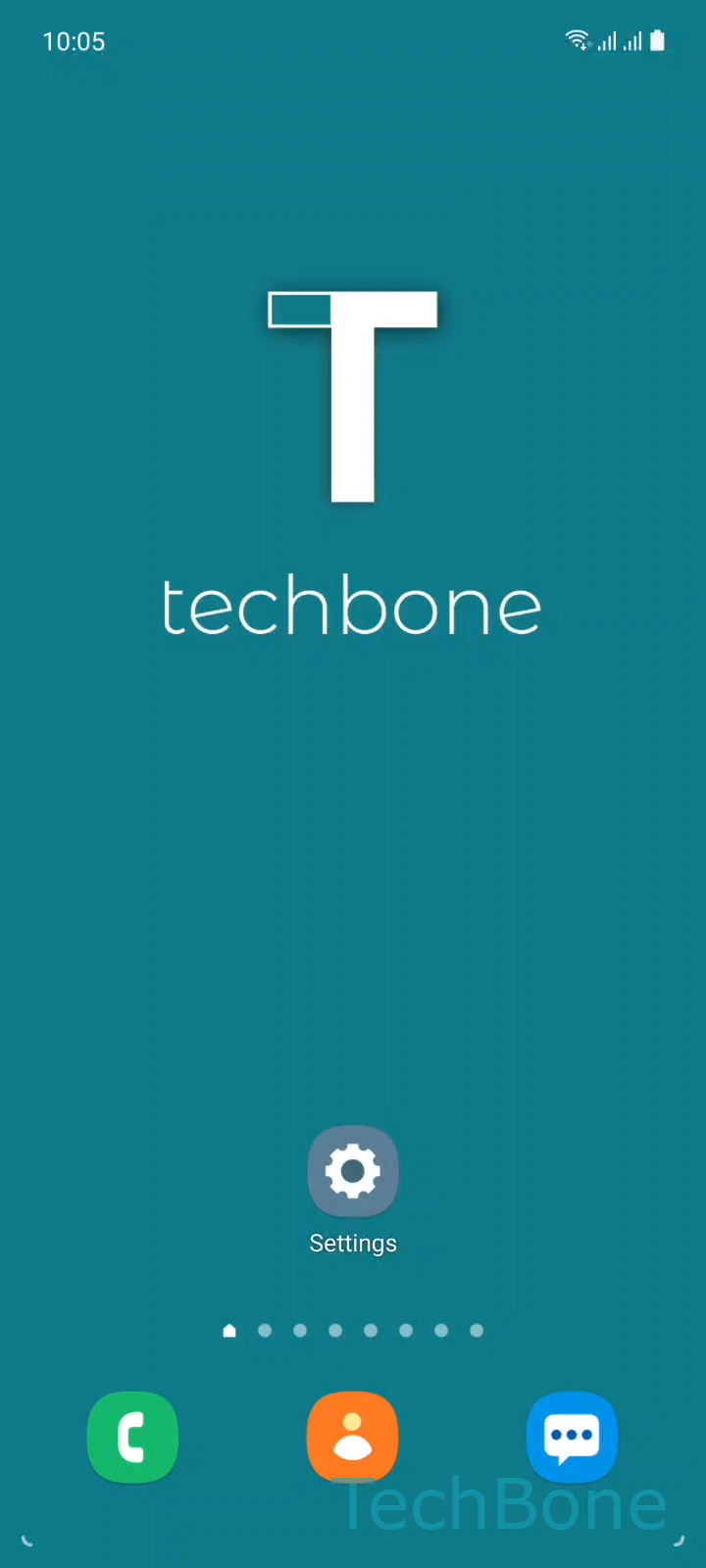
Step 1 of 5: Tap on **Settings**

1

Tap on Settings

Live simulator

Android 11 · One UI 3
Change Always On Display Orientation – One UI 3: step 1 – Tap on Settings
Tap on Settings
1 / 5

Scroll or use the buttons for the next step

Feedback

Was the guide correct?

Help others: confirm the path or report a problem.

62

Confirmations

Forum verified this path

Samsung

Change Always On Display Orientation auf Samsung

The Always On Display on Samsung phones follows the phone's default lock screen orientation, which is portrait. That works for pocket or nightstand use, but if you keep the phone in a horizontal dock, car mount, or flat stand, the clock and notification icons stay rotated on their side.

One UI includes a dedicated orientation setting inside the Always On Display menu, separate from the general screen rotation option. Changing it does not affect how the interface behaves once you wake the phone; it only controls the layout while the screen is off and the Always On Display is active.

Open SettingsLock screenAlways On DisplayScreen orientation and pick Portrait or Landscape.

If the orientation option is missing, check whether Always On Display is turned on at all. The screen orientation menu only shows up once the feature itself is active, so devices with it disabled won't display this setting.

Frequently asked questions

No. The setting under SettingsLock screenAlways On DisplayScreen orientation only affects the always-on screen, not the lock screen or app behavior once you wake the device.

Compatible devices

Tap your device — opens its hub with matching guides.

Android 11 · One UI 3

No compatible devices are listed for this version.