Skip to content
TechBone
Samsung

Samsung: Turn Notifications On or Off for Individual Apps

If one app keeps buzzing your phone with alerts you no longer want, you don't have to mute your whole device to fix it. Samsung lets you manage notification permissions per app, so you can silence a chatty game or a busy WhatsApp group chat while alerts from your other apps keep working. Some apps even split their notifications into categories, letting you block group messages while direct messages still come through.

4 min5 steps
Version

Step by step

1 / 5

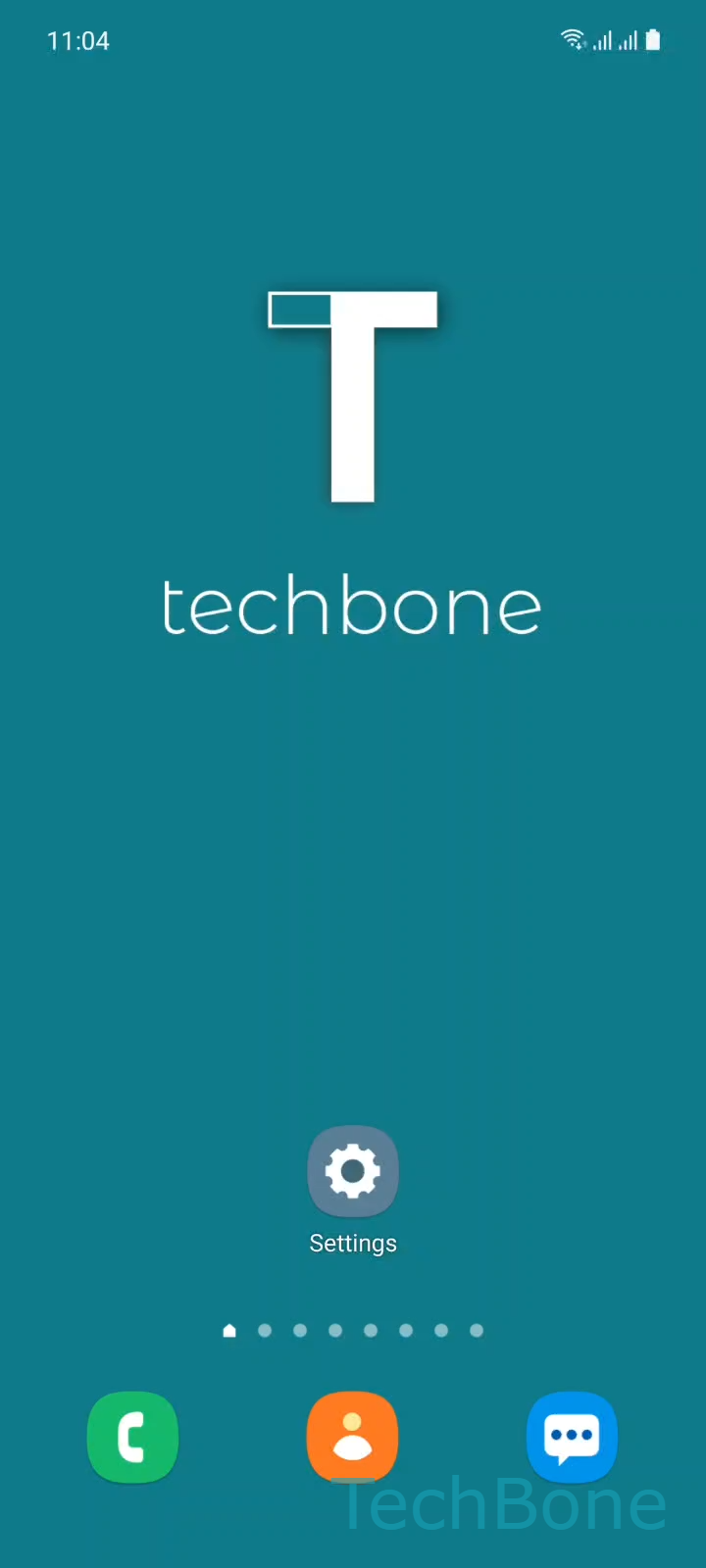
Step 1 of 5: Tap on **Settings**

1

Tap on Settings

Live simulator

Android 11 · One UI 3
Turn Notifications On or Off for Individual Apps – One UI 3: step 1 – Tap on Settings
Tap on Settings
1 / 5

Scroll or use the buttons for the next step

Feedback

Was the guide correct?

Help others: confirm the path or report a problem.

17

Confirmations

Forum verified this path

Samsung

Turn Notifications On or Off for Individual Apps auf Samsung

By default, every app installed on a Samsung phone is allowed to push notifications to your lock screen, status bar and notification panel. Once you install an app like WhatsApp, a game or a shopping app, it usually asks for notification permission right away and keeps sending alerts until you change that setting yourself.

Samsung manages these permissions individually, so muting one chatty app never touches alerts from anything else on your phone. Open SettingsApps ➔ select the app ➔ Notifications, then switch Show notifications off to block all alerts from that app, or back on to restore them.

Many apps break their notifications down further once you reach this screen. WhatsApp, for example, lets you keep notifications for direct messages active while turning off alerts for group chats specifically, so you don't have to silence the whole app just to escape one noisy group.

Turning off notifications completely means you won't see anything from that app, not even a silent entry in the panel, until you switch it back on. If you only need quiet hours instead of a permanent block, a scheduled Do Not Disturb mode is usually the better fix, since it mutes everything temporarily without changing any individual app permission.

Frequently asked questions

Yes. Open the specific chat inside WhatsApp and mute it there, or check the categories listed under SettingsAppsWhatsAppNotifications, where direct messages and group messages are often controlled separately.

Compatible devices

Tap your device — opens its hub with matching guides.

Android 11 · One UI 3

No compatible devices are listed for this version.