Skip to content
TechBone
Samsung

Samsung: Show or Hide Notifications on Always On Display

If your Always On Display keeps showing notification icons you would rather keep off the lock screen, that is the default Notifications behavior on Samsung phones. These icons only signal that a message arrived and never reveal sender or content, even when the setting stays on. Turning it off removes the icons from the always-on screen completely.

3 min4 steps
Version

Step by step

1 / 4

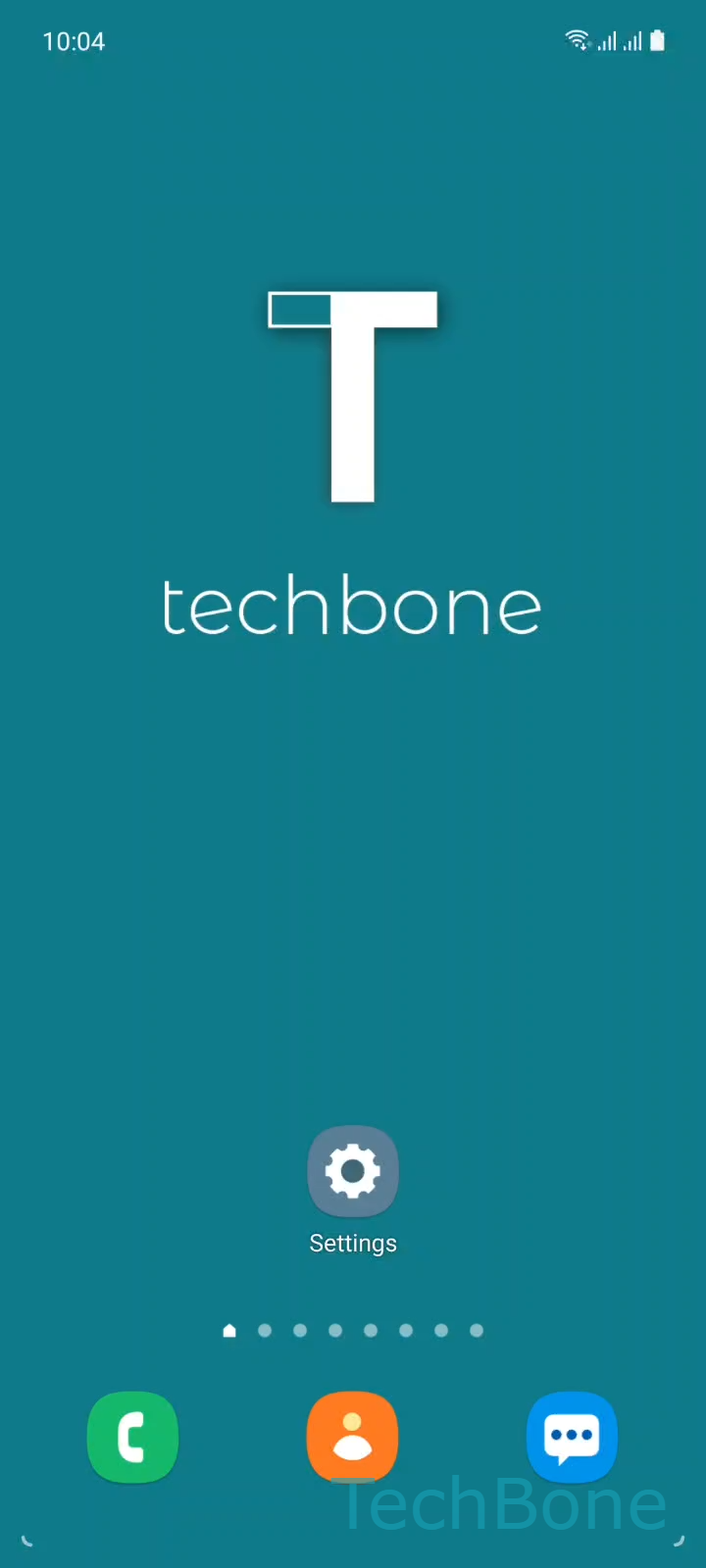
Step 1 of 4: Tap on **Settings**

1

Tap on Settings

Live simulator

Android 11 · One UI 3
Show or Hide Notifications on Always On Display – One UI 3: step 1 – Tap on Settings
Tap on Settings
1 / 4

Scroll or use the buttons for the next step

Feedback

Was the guide correct?

Help others: confirm the path or report a problem.

13

Confirmations

Forum verified this path

Samsung

Show or Hide Notifications on Always On Display auf Samsung

On Samsung phones, the Always On Display shows small icons whenever a new notification arrives, even while the rest of the screen stays off. This behavior comes from the Notifications option inside the lock screen settings and works separately from the notification panel or lock screen previews.

The icons only confirm that something happened. They show the app icon and nothing else, no sender name, no message text, no preview, regardless of whether the toggle is on or off.

Disabling this option makes sense if you check your phone in public and even a bare app icon gives away too much. It has no effect on notifications inside the pull-down shade or on the regular lock screen, since those are separate settings.

To change it, open SettingsLock screenNotifications, then use the toggle to enable or disable the icons shown on the Always On Display.

If your goal is hiding message content rather than icons, check the lock screen notification settings instead. This particular option only controls the always-on screen.

Frequently asked questions

No. Disabling Notifications under SettingsLock screen only removes icons from the Always On Display. Lock screen previews are controlled by a separate notification setting.

Compatible devices

Tap your device — opens its hub with matching guides.

Android 11 · One UI 3

No compatible devices are listed for this version.