Skip to content
TechBone
Samsung

Samsung: Print a Photo Directly from the Gallery

If the Print option in your Gallery stays greyed out or no printer shows up, the built-in printing service on your Samsung phone or tablet is not finding a compatible printer. This happens most often when the printer is on a different network or the print plugin has not been set up yet. The result is that photos, PDFs or other files never reach the printer, even though the Print button is right there in the share menu.

5 min6 steps
Version

Step by step

1 / 6

Step 1 of 6: Choose a **Photo**

1

Choose a Photo

Live simulator

Android 11 · One UI 3
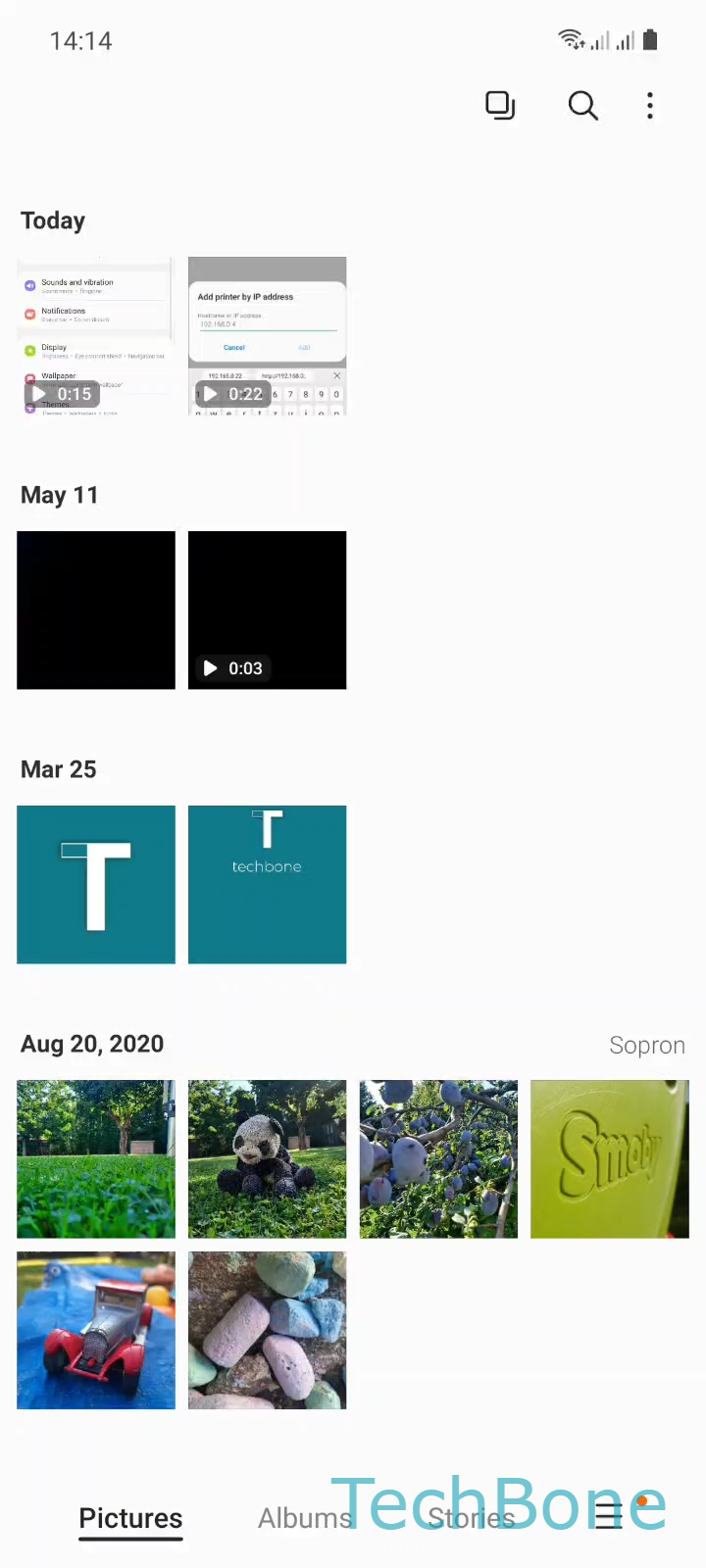
Print a Photo from the Gallery – One UI 3: step 1 – Choose a Photo
Choose a Photo
1 / 6

Scroll or use the buttons for the next step

Feedback

Was the guide correct?

Help others: confirm the path or report a problem.

78

Confirmations

Forum verified this path

Samsung

Print a Photo from the Gallery auf Samsung

Samsung devices running One UI include a built-in print service that lets you send photos, PDFs, documents and other files straight to a compatible printer without installing extra software. If printing fails, the cause is usually a missing printer connection rather than a broken Gallery app.

To print a photo, open the file first. From the Gallery, tap Choose a Photo to select the image you want, then Open the Menu to reveal the sharing and print options.

Tap on Tap on Print to open the print preview. From here, Open the Menu again if you need to switch printers, then Select a Printer from the list of available devices on your network.

Once the correct printer is selected, tap on Tap on Print to send the file. If no printer appears in the list, check that both the phone and the printer are connected to the same Wi-Fi network, and confirm the printer supports mobile or cloud printing.

This flow works the same way for other file types, including PDFs and video thumbnails you export as images. If a specific app blocks the Print option, try opening the file directly in the Gallery or a file manager instead of sharing it from a third-party app.

Frequently asked questions

Your phone and the printer usually need to be on the same Wi-Fi network for the printer to appear after you tap on Select a Printer. If the printer still does not show up, check that it supports mobile printing and that it is powered on and connected.

Compatible devices

Tap your device — opens its hub with matching guides.

Android 11 · One UI 3

No compatible devices are listed for this version.