Skip to content
TechBone
Samsung

Samsung: Set a Custom Photo on Always On Display

If your Always On Display only cycles through the built-in clock styles, your device is still set to a standard face instead of the photo layout. The picture option sits inside the Clock style menu, not in the wallpaper settings where most people look for it. Once picked, the image appears above your FaceWidgets instead of a digital or analog clock.

6 min7 steps
Version

Step by step

1 / 7

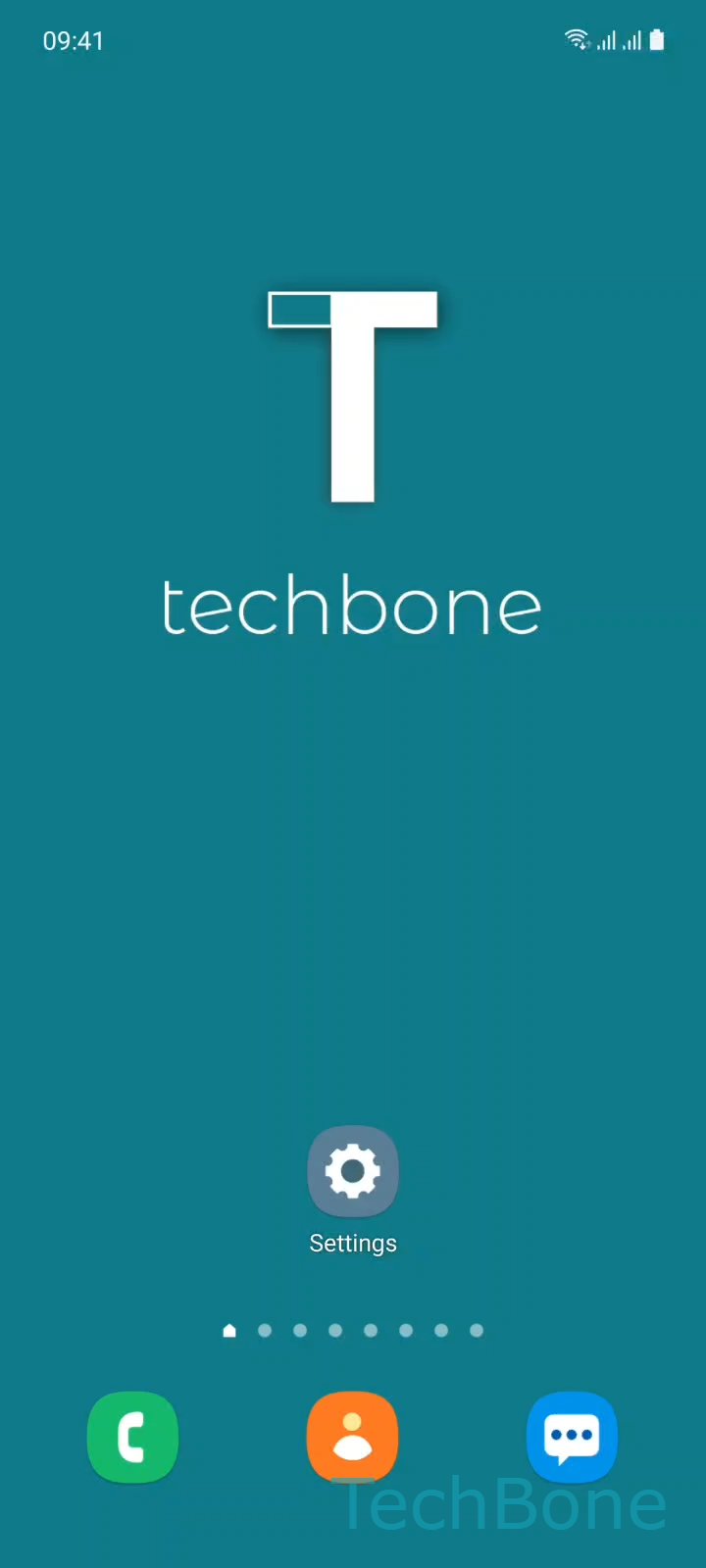
Step 1 of 7: Tap on **Settings**

1

Tap on Settings

Live simulator

Android 11 · One UI 3
Set a Custom Image on Always On Display – One UI 3: step 1 – Tap on Settings
Tap on Settings
1 / 7

Scroll or use the buttons for the next step

Feedback

Was the guide correct?

Help others: confirm the path or report a problem.

82

Confirmations

Forum verified this path

Samsung

Set a Custom Image on Always On Display auf Samsung

Samsung's Always On Display defaults to a clock face because the photo option is tied to a specific clock style, not to your regular wallpaper. Switching the wallpaper alone has no effect on the lock screen while the display is off, which is why many users assume the feature is missing.

The picture layout lives inside the clock style picker. Selecting a Gallery-based style tells One UI to render your chosen photo above the FaceWidgets area instead of drawing a clock.

To set it, open Tap on SettingsTap on Lock screenTap on Clock styleTap on GalleryTap on Choose from GalleryChoose an Image/PhotoTap on Done.

Once confirmed, the image replaces the clock on the Always On Display, and FaceWidgets like battery, date or notifications still show below it.

Bright or busy photos can look washed out on an always-on panel, since the display dims brightness and color depth to save power. If the picture is barely visible, a simpler black-and-white or high-contrast image usually works better than switching back to a standard clock style.

Frequently asked questions

The Always On Display lowers brightness and simplifies colors to save battery. Photos with strong contrast or simple shapes stay recognizable, while detailed or bright images often look washed out.

Compatible devices

Tap your device — opens its hub with matching guides.

Android 11 · One UI 3

No compatible devices are listed for this version.