Skip to content
TechBone
Xiaomi

Xiaomi: Check Battery Usage Per App and Function

If your Xiaomi phone drains faster than usual, it helps to see which app or function is actually responsible before you start disabling things at random. MIUI keeps a detailed breakdown of battery usage, separating screen time, standby drain, and individual apps, but this overview sits a few taps deep in the settings. Without checking these numbers, you're only guessing at what's eating your charge.

3 min3 steps
Version

Step by step

1 / 3

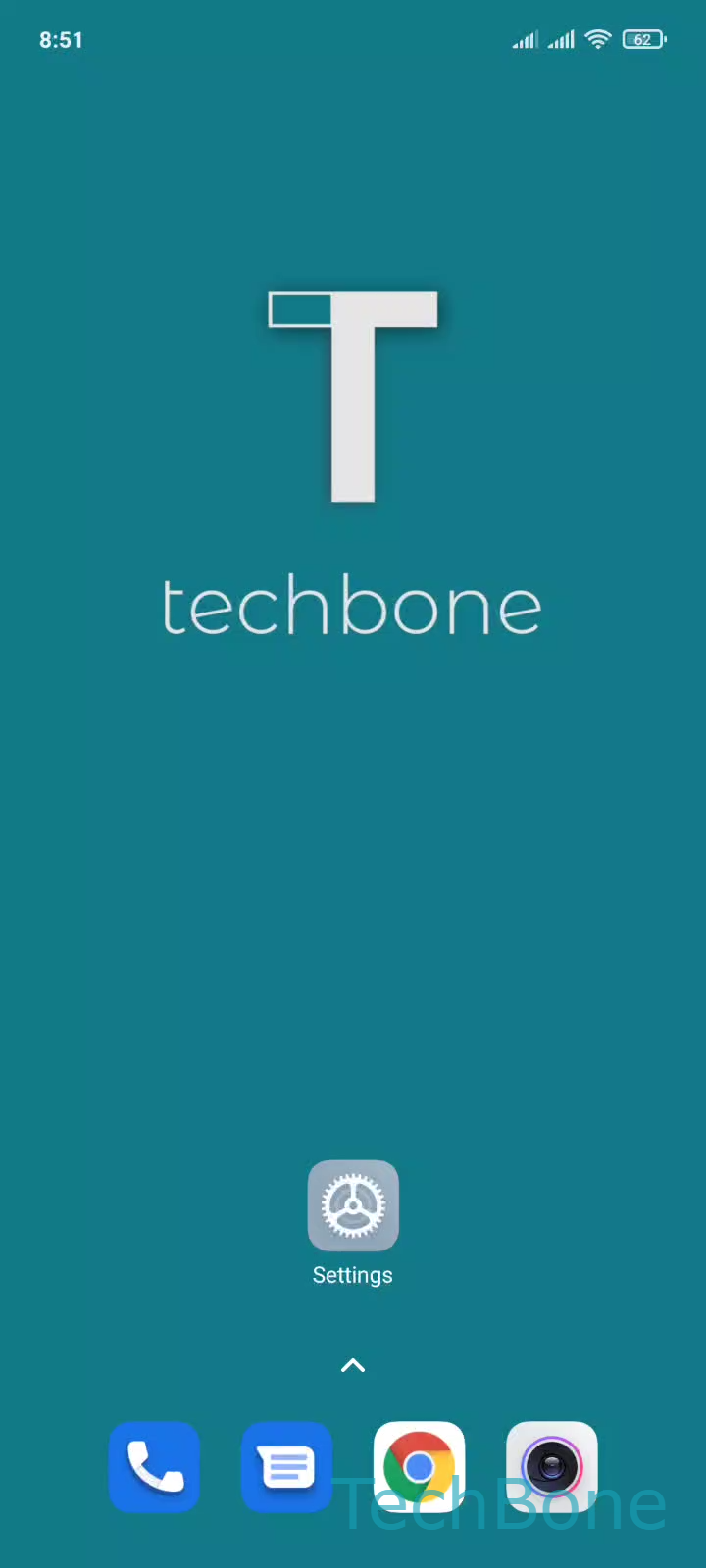
Step 1 of 3: Tap on **Settings**

1

Tap on Settings

Live simulator

Android 11 · MIUI
Check Battery Usage Stats per App – MIUI: step 1 – Tap on Settings
Tap on Settings
1 / 3

Scroll or use the buttons for the next step

Feedback

Was the guide correct?

Help others: confirm the path or report a problem.

42

Confirmations

Forum verified this path

Xiaomi

Check Battery Usage Stats per App auf Xiaomi

Battery drain complaints usually come down to one thing: not knowing which app or system function is actually responsible. MIUI tracks this in the background and lets you view it broken down by percentage, covering things like the Android system itself, standby time, and active screen use.

To check it, go to SettingsBattery & performanceChoose an app. This opens a list ranking apps and system functions by how much battery they have consumed since the last full charge or reset.

What the numbers actually mean

A high percentage next to the screen usually means you have the brightness set too high or the screen timeout set too long. A high standby percentage on the other hand can point to a background app waking the device repeatedly, even when you're not using it.

If one specific app shows unusually high usage compared to how often you actually open it, that app is likely running background tasks it does not need. This is the point where restricting its background activity or checking its permissions makes more sense than a general battery saver mode.

Frequently asked questions

The Android system entry covers background processes like location services, sync, and system updates rather than a single app. If it consistently ranks near the top, check which apps have frequent location or sync access under SettingsAppsPermissions.