Skip to content
TechBone
Xiaomi

Xiaomi: Show or Hide Notification Icons in the Status Bar

When your status bar stays empty even though an app has new messages, the notification icon display in MIUI might be switched off. This setting decides whether small app icons show up next to the clock so you can spot new activity without unlocking your phone. If it is disabled, you will only notice new notifications once you pull down the shade.

3 min4 steps
Version

Step by step

1 / 4

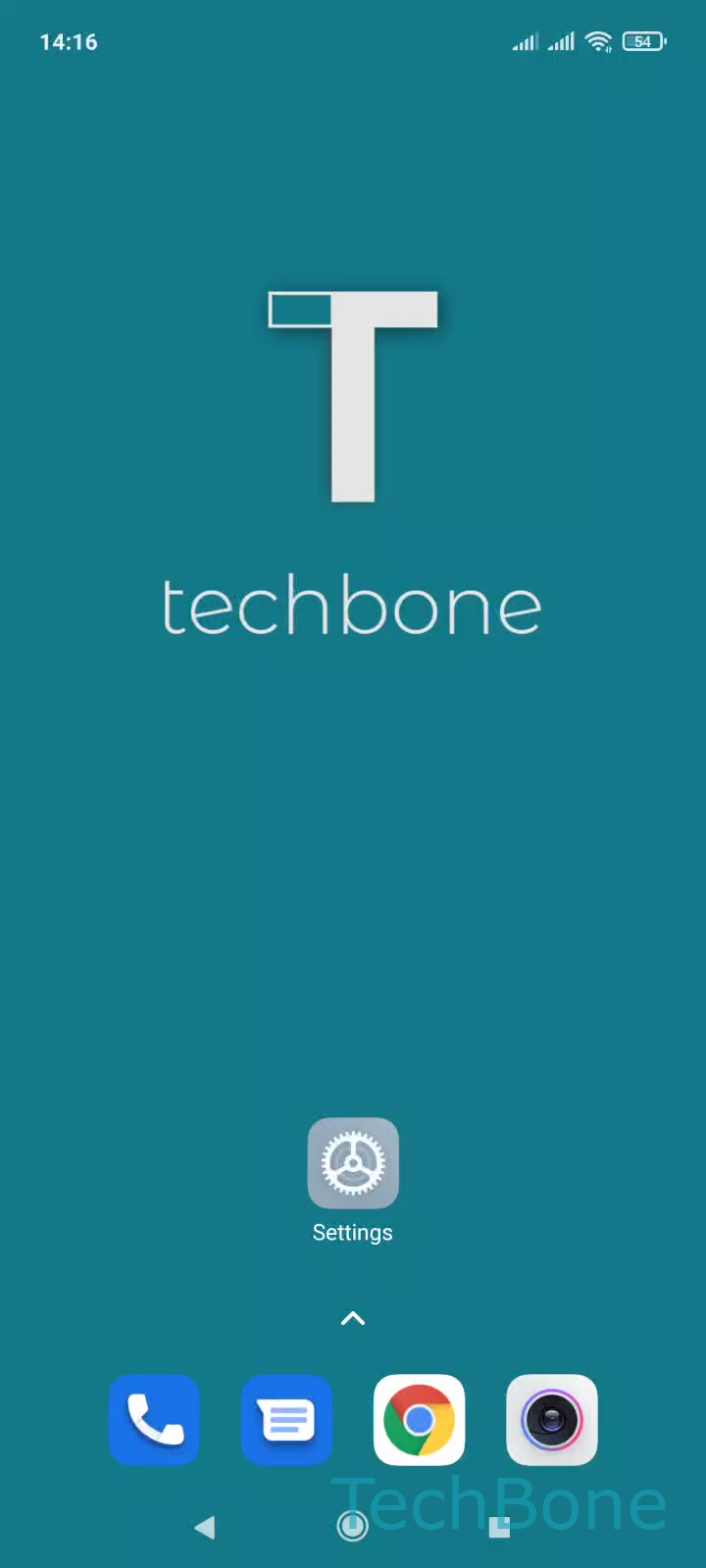
Step 1 of 4: Tap on **Settings**

1

Tap on Settings

Live simulator

Android 11 · MIUI
Show or Hide Notification Icons in the Status Bar – MIUI: step 1 – Tap on Settings
Tap on Settings
1 / 4

Scroll or use the buttons for the next step

Feedback

Was the guide correct?

Help others: confirm the path or report a problem.

34

Confirmations

Forum verified this path

Xiaomi

Show or Hide Notification Icons in the Status Bar auf Xiaomi

On Xiaomi phones running MIUI, the status bar can show a small icon for every app that has an unread notification. This gives you a quick overview of new messages, updates, or missed calls without opening the notification shade.

If this option gets turned off, either by accident or during a system reset, the status bar stays clean but you lose that instant overview. Apps still send notifications and the shade still fills up, only the small icons next to the clock disappear.

To check or change this setting, go to Tap on SettingsTap on Notifications & Control centerTap on Status barEnable or disable Show notification icons.

Turning the icons back on restores the quick overview. Turning them off keeps the status bar minimal, which some people prefer on phones with a notch or punch-hole camera where space is limited.

This setting only affects the icons in the status bar. It does not mute notifications, change sounds, or hide messages from the notification shade or lock screen.

Frequently asked questions

A few system apps, such as the ones handling calls or alarms, can keep a persistent icon regardless of the general Show notification icons setting. Check the individual app's notification permissions if one icon will not disappear.