Skip to content
TechBone
Xiaomi

Xiaomi: Turn Quick Ball On or Off

If the floating navigation bubble is missing from your Xiaomi screen edge, you probably switched off Quick Ball at some point. This shortcut button gives fast access to actions like locking the screen, capturing a screenshot, or switching between recent apps without touching the physical buttons. When it disappears or starts blocking games and videos, it usually comes down to one setting hidden inside Additional settings.

3 min4 steps
Version

Step by step

1 / 4

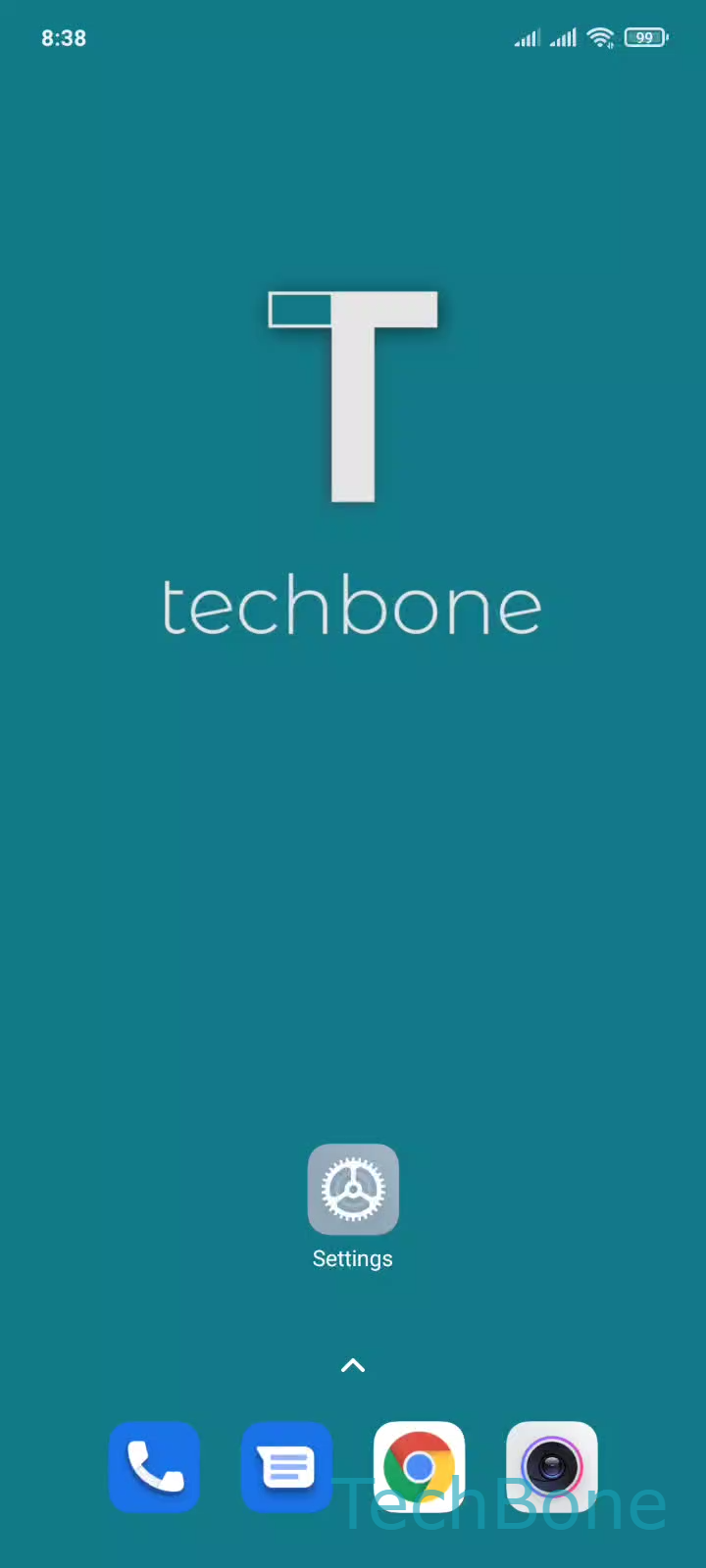
Step 1 of 4: Tap on **Settings**

1

Tap on Settings

Live simulator

Android 11 · MIUI
Turn Quick Ball On or Off – MIUI: step 1 – Tap on Settings
Tap on Settings
1 / 4

Scroll or use the buttons for the next step

Feedback

Was the guide correct?

Help others: confirm the path or report a problem.

92

Confirmations

Forum verified this path

Xiaomi

Turn Quick Ball On or Off auf Xiaomi

Quick Ball is a floating shortcut button that MIUI places on the edge of the screen. It works independently from the on-screen or gesture navigation and stays visible over almost every app, including split-screen views.

By default it holds up to five shortcuts, such as going back, opening recent apps, locking the screen, or taking a screenshot. Some people disable it because it overlaps video players or games, others turn it on because they rarely use the bottom navigation bar.

Where the toggle sits

The switch lives in the same place across recent MIUI versions:

SettingsAdditional settingsQuick ball

Inside that screen you get a single toggle to turn Quick Ball on or off. When it is on, you also get options to move its resting position along the screen edge and to pick which five shortcuts appear inside it.

If Quick Ball stays hidden after enabling it, check whether battery saver or a game mode is running, since both can temporarily suppress floating overlays.

Frequently asked questions

Quick Ball can usually be dragged and dropped anywhere along the visible screen edge once it is enabled. If it snaps back to the same spot, an app in the foreground may be blocking overlay permissions; check that permission for that app under SettingsApps.