Skip to content
TechBone
Android

Android: Change the Clock App Timer Sound

If your timer always rings with the same generic tone, you probably haven't touched the sound settings inside the Clock app yet. Android's Clock app ships with several preinstalled tones for the timer, but the option sits inside the app menu rather than the system sound settings, so it's easy to overlook. Once you know where to look, swapping the tone takes just a few taps.

4 min5 steps
VersionAndroid 9 · Android 9

Step by step

1 / 5

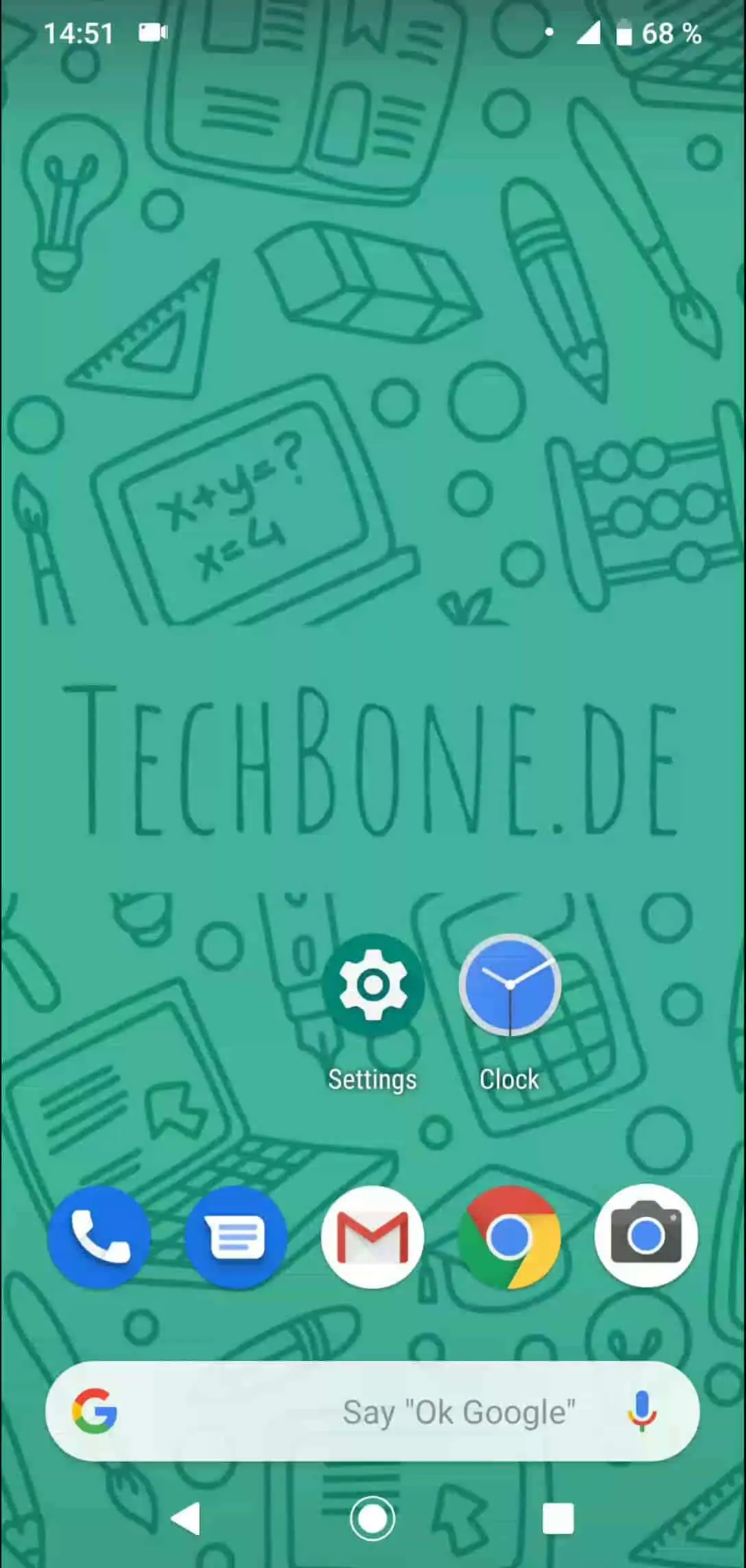
Step 1 of 5: Tap on **Clock**

1

Tap on Clock

Live simulator

Android 9 · Android 9
Change Timer Sound – Android 9: step 1 – Tap on Clock
Tap on Clock
1 / 5

Scroll or use the buttons for the next step

Feedback

Was the guide correct?

Help others: confirm the path or report a problem.

19

Confirmations

Forum verified this path

Android

Change Timer Sound auf Android

The timer in Android's Clock app plays a default tone until you pick a different one from the preinstalled list. This setting is separate from your alarm tone and your notification sounds, so changing it only affects the timer.

You find the option inside the Clock app itself, not in the system sound settings. Open Tap on ClockOpen the menuOpen the settingsTap on Timer soundChoose an option to browse the available tones and pick one.

When this setting will not help

If you hear no sound at all when the timer ends, the issue is usually the media or alarm volume, or a silent/Do Not Disturb mode that is still active, not the tone selection itself. Check your volume sliders and any active Focus mode first before changing the sound again.

The new tone applies to timers started after you save the change. Timers that are already counting down keep the sound that was active when you started them.

Frequently asked questions

The Timer sound menu only lists preinstalled tones. There is no option here to add your own audio file.