
Android
Turn Off TalkBack auf Android
TalkBack rewrites how your Android phone reacts to touch. A single tap on any icon only highlights it and reads it aloud; you need a second tap to actually open it. Swiping left or right moves between items instead of scrolling normally. This is why turning the feature off feels harder than a regular settings change.
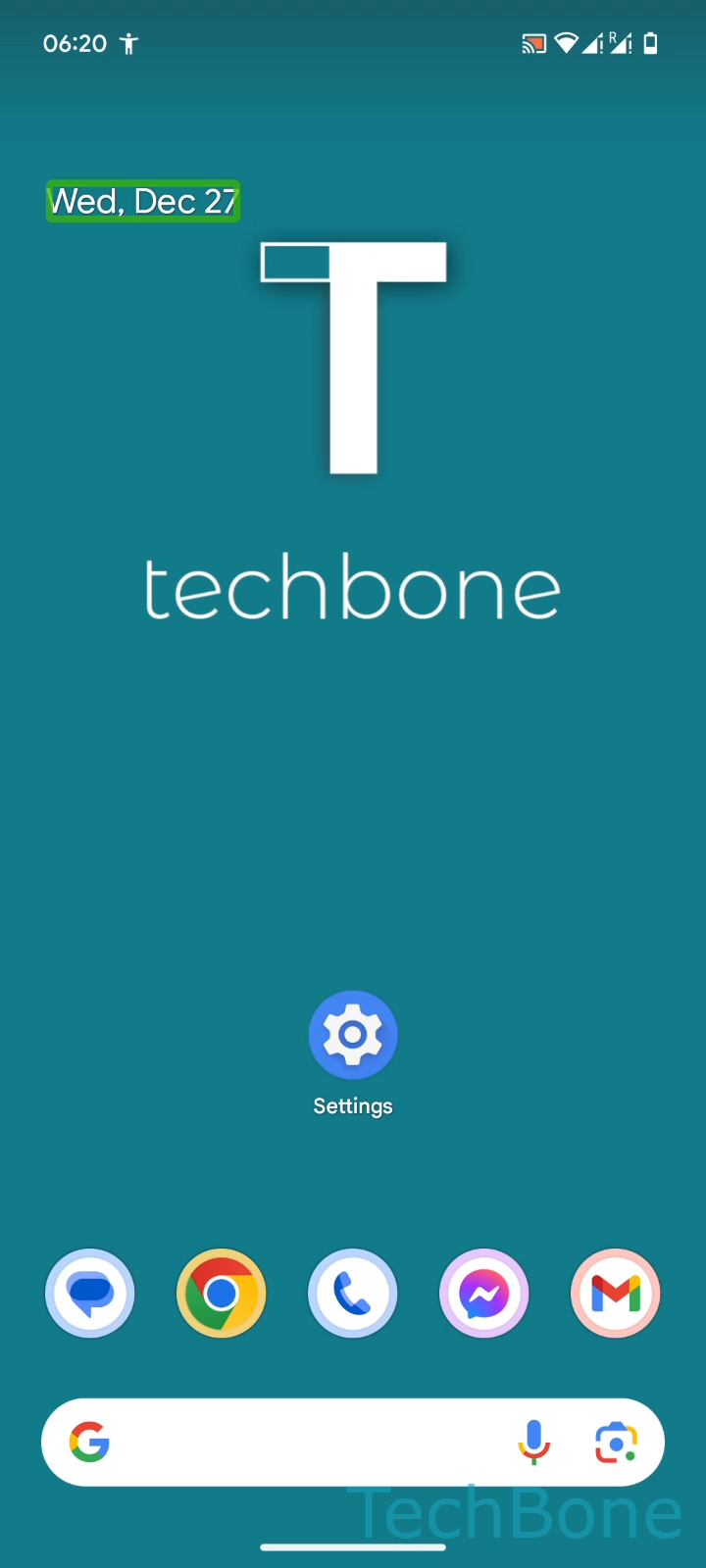
To disable it, follow the same double-tap logic through every screen:
Tap on Settings ➔ Tap twice on Settings ➔ Swipe with two fingers to scroll ➔ Tap on Accessibility ➔ Tap twice on Accessibility ➔ Tap on TalkBack ➔ Tap twice on TalkBack ➔ Tap on Use TalkBack ➔ Tap twice on Use TalkBack ➔ Tap on Stop ➔ Tap twice on Stop
The two-finger swipe is required to scroll the list while TalkBack is still active, since a normal one-finger swipe just moves focus between visible items. Tapping Stop and confirming with a second tap immediately returns your phone to standard single-tap control.
If TalkBack was turned on by accident through a volume-key shortcut, check that shortcut afterward so it does not reactivate the feature again.