Skip to content
TechBone
Oppo

Oppo: Switch the Messages App Between Dark and Light Theme

If the Messages app on your Oppo phone still shows a bright white background at night, it is running the light theme regardless of your system-wide dark mode setting. Coloros lets you set the theme for Messages on its own, which cuts glare and can lower battery drain on OLED screens. This option sits inside the app itself, not in the general display settings.

3 min4 steps
VersionAndroid 11 · Coloros 11

Step by step

1 / 4

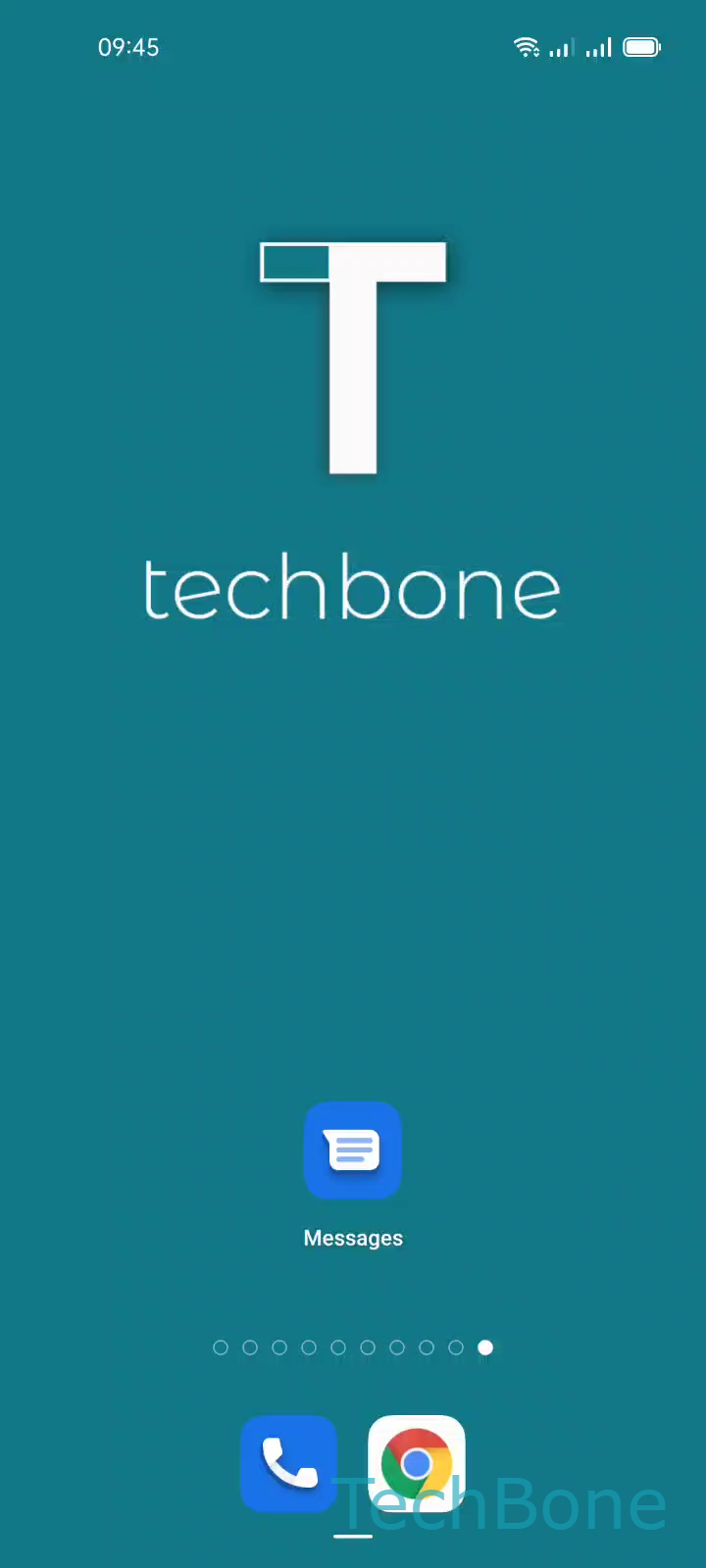
Step 1 of 4: Tap on **Messages**

1

Tap on Messages

Live simulator

Android 11 · Coloros 11
Set Dark or Light Theme for the Messages App – Coloros 11: step 1 – Tap on Messages
Tap on Messages
1 / 4

Scroll or use the buttons for the next step

Feedback

Was the guide correct?

Help others: confirm the path or report a problem.

76

Confirmations

Forum verified this path

Oppo

Set Dark or Light Theme for the Messages App auf Oppo

The Messages app on Oppo phones controls its own light or dark theme separately from the system-wide dark mode in Coloros.

If dark mode is active everywhere else but Messages still opens with a bright white layout, the app has not been switched over yet. This happens because Coloros lets individual apps override the general theme, which gives more control but also causes confusion when settings do not match.

To fix it, open the app and change the theme directly:

MessagesMenuChoose theme ➔ select Light or Dark ➔ confirm with OK

The dark theme reduces the amount of white shown on screen, which lowers eye strain in dim rooms and can reduce power draw on OLED displays. The light theme stays easier to read outdoors in direct sunlight.

This setting only affects the Messages app. Other apps like Phone or Contacts need to be switched the same way, on their own, if you want a consistent look across the interface.

Frequently asked questions

No, this switch only applies to the Messages app. Phone and Contacts keep whatever theme you set for them separately.