
Skip to content
TechBone
Oppo

Oppo: Switch the Phone App Between Dark and Light Theme

If the Phone app on your Oppo still opens in a bright white interface at night, it can strain your eyes and drain the battery faster than needed. Unlike the rest of ColorOS, the dialer and call screen sometimes keep their own display setting separate from the system-wide dark mode. Switching it manually only takes a few taps.

5 min6 steps
VersionAndroid 11 · Coloros 11

Step by step

1 / 6

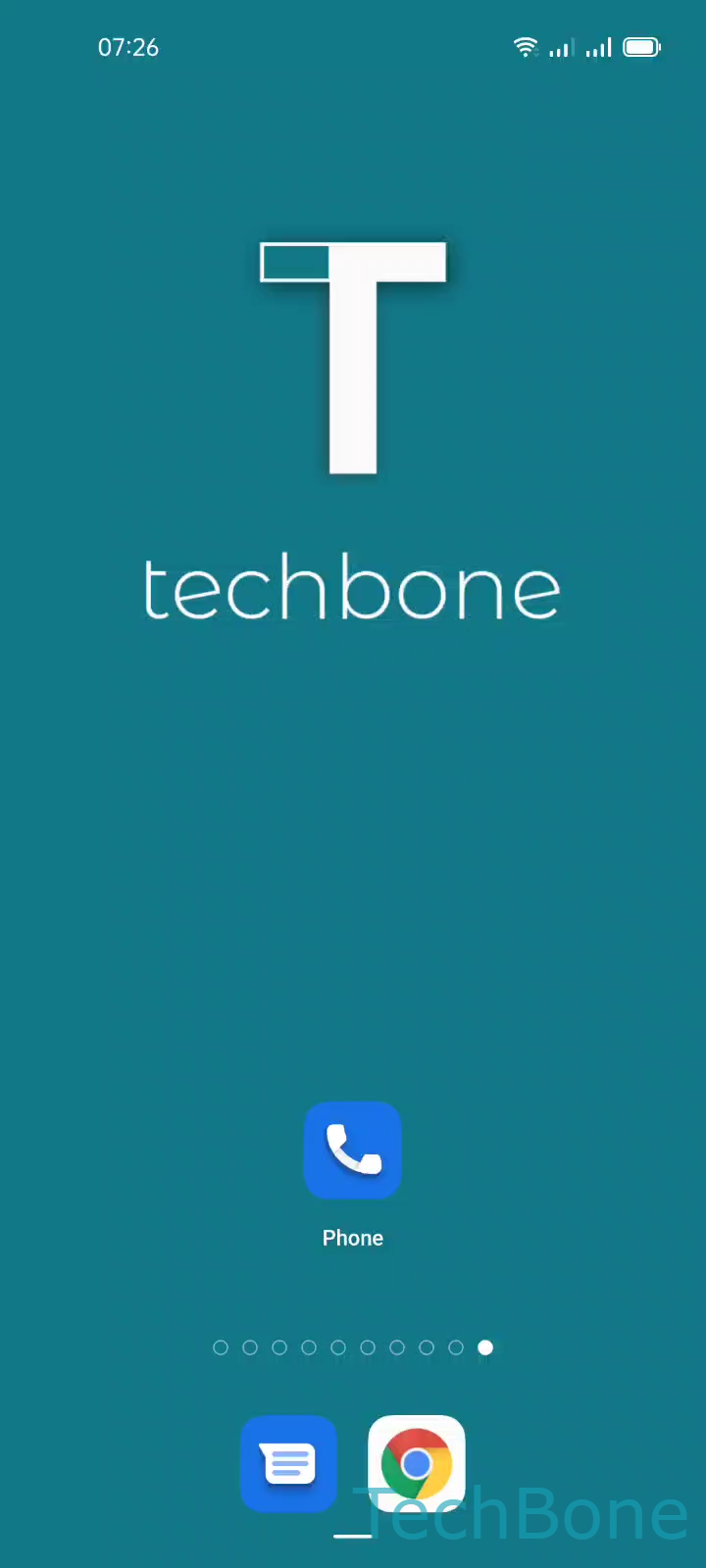
Step 1 of 6: Tap on **Phone**

1

Tap on Phone

Live simulator

Android 11 · Coloros 11
Dark or Light Theme for the Phone App – Coloros 11: step 1 – Tap on Phone
Tap on Phone
1 / 6

Scroll or use the buttons for the next step

Feedback

Was the guide correct?

Help others: confirm the path or report a problem.

87

Confirmations

Forum verified this path

Oppo

Dark or Light Theme for the Phone App auf Oppo

The Phone app on Oppo devices running ColorOS can carry its own display setting instead of following the system-wide dark mode. That is why calls and the dialer sometimes stay bright even after you switch the rest of the interface to dark.

A dark theme reduces the amount of light emitted by the display, which is easier on your eyes in low-light situations. On devices with an OLED panel, it also lowers power draw, since darker pixels use less energy.

To change the theme, open Tap on PhoneOpen the MenuTap on SettingsTap on Display optionsTap on Choose themeChoose Light or Dark.

Pick whichever option suits your surroundings. If you switch the system-wide appearance later and the Phone app does not follow along, come back to this same menu and set it again.

This setting only affects the Phone app itself. Messages, contacts, and other apps keep their own theme settings and may need to be adjusted separately.

Frequently asked questions

The Phone app has its own theme setting under Choose theme, separate from the system-wide dark mode. You need to set it manually the first time.