Skip to content
TechBone
Oppo

Oppo: Lock or Unlock the Home Screen Layout

If your Oppo home screen suddenly won't let you move icons, delete widgets, or drop folders into a new spot, a system function called Home screen locked is active. This setting freezes the entire layout so nothing on the home screen can be added, removed, or repositioned by accident. It often gets switched on without you noticing, especially after restoring settings or handing the phone to someone else.

3 min3 steps
VersionAndroid 11 · Coloros 11

Step by step

1 / 3

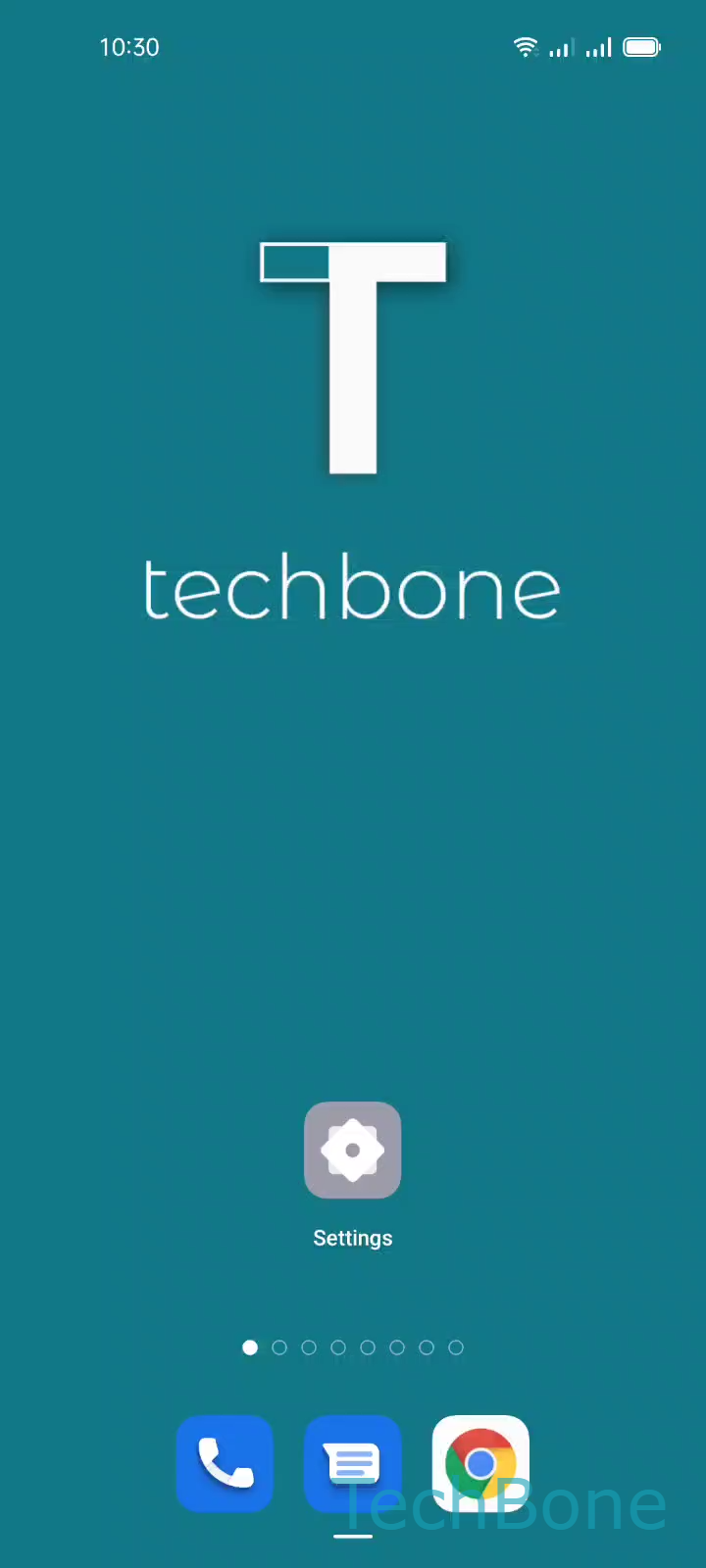
Step 1 of 3: Tap on **Settings**

1

Tap on Settings

Live simulator

Android 11 · Coloros 11
Lock or Unlock Home Screen Layout – Coloros 11: step 1 – Tap on Settings
Tap on Settings
1 / 3

Scroll or use the buttons for the next step

Feedback

Was the guide correct?

Help others: confirm the path or report a problem.

100

Confirmations

Forum verified this path

Oppo

Lock or Unlock Home Screen Layout auf Oppo

The message Home screen locked appears when Oppo's layout protection is switched on. This function stops any change to app shortcuts, widgets, or folders on the home screen, whether that change is accidental or intentional.

Once enabled, you can still open apps normally, but long-pressing an icon to move it, deleting a widget, or dragging a new shortcut onto the home screen simply does nothing. The system treats the entire layout as fixed.

Where the setting lives

The option sits inside the display settings, together with lock screen and Always-On Display controls, since all three deal with how content is shown on screen.

To check or change it, go to Tap on SettingsTap on Home screen, Lock screen & Always-On-DisplayEnable or disable Home screen locked.

Turning the toggle off restores full control over icons and widgets immediately, no restart needed. Turning it on protects a layout you already like, which is useful if children or other family members use the same device.

Frequently asked questions

This happens when the layout protection is active. Open Tap on SettingsTap on Home screen, Lock screen & Always-On-Display and switch Enable or disable Home screen locked off to move icons again.