Skip to content
TechBone
Oppo

Oppo: Show or Hide Notifications on Always-On Display

On the Oppo Always-On Display, notifications only appear as small app icons, not as full previews like on the lock screen. If you find these icons distracting or want a cleaner clock screen, you can turn that notification layer off separately from the rest of the Always-On Display.

3 min4 steps
Version

Step by step

1 / 4

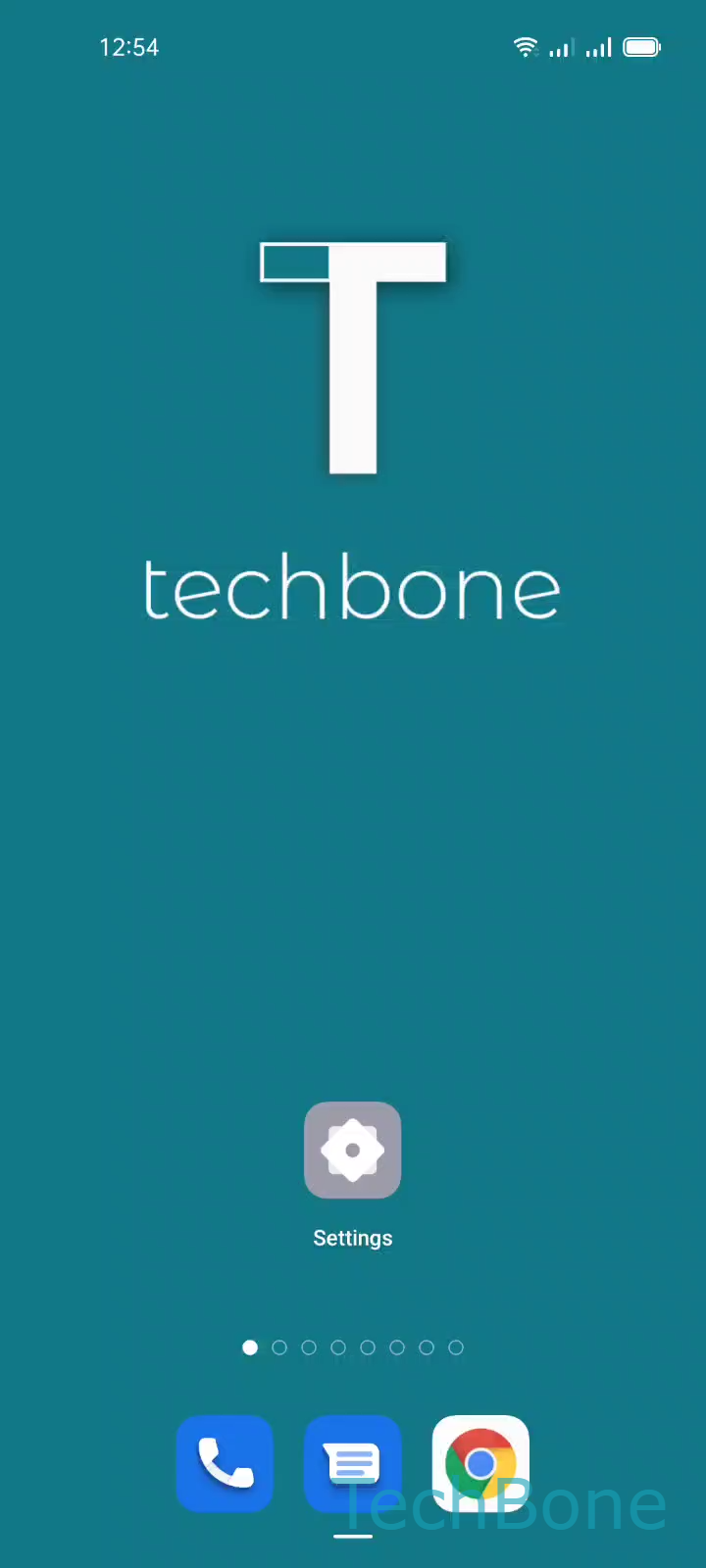
Step 1 of 4: Tap on **Settings**

1

Tap on Settings

Live simulator

Android 11 · Coloros 11
Show or Hide Notifications on Always-On Display – Coloros 11: step 1 – Tap on Settings
Tap on Settings
1 / 4

Scroll or use the buttons for the next step

Feedback

Was the guide correct?

Help others: confirm the path or report a problem.

99

Confirmations

Forum verified this path

Oppo

Show or Hide Notifications on Always-On Display auf Oppo

The Always-On Display on Oppo phones shows the clock, date and battery status, plus a row of small icons for unread notifications. Unlike the lock screen, it never shows sender names or message text, only the app icon itself.

This icon row is controlled by a separate switch inside the Always-On Display settings, so you can keep the clock visible while removing notification icons, or the other way around. That is useful if you find the icons distracting on a desk display, or if you want to keep notification content strictly on the lock screen.

Where to change it

Go to Tap on SettingsTap on Home screen, Lock screen & Always-On-DisplayTap on Always-On DisplayEnable or disable Notifications.

Turning this switch off removes only the notification icons from the Always-On Display. The clock, date and battery indicator stay visible as before. Turning it back on restores the icon row immediately, without affecting how notifications appear on the lock screen or in the notification shade.

Frequently asked questions

No. The switch under Tap on SettingsTap on Home screen, Lock screen & Always-On-DisplayTap on Always-On DisplayEnable or disable Notifications only affects the Always-On Display icon row. Lock screen notification previews are managed separately in the notification settings.