Skip to content
TechBone
Oppo

Oppo: Adjust Screen Timeout Duration

If your Oppo display locks itself after just a few seconds while you are still reading or filling out a form, the screen timeout is set too short for how you use the phone. Coloros applies a default auto screen off value that favors battery savings over convenience. The duration can be raised or lowered anywhere between a few seconds and half an hour.

3 min4 steps
Version

Step by step

1 / 4

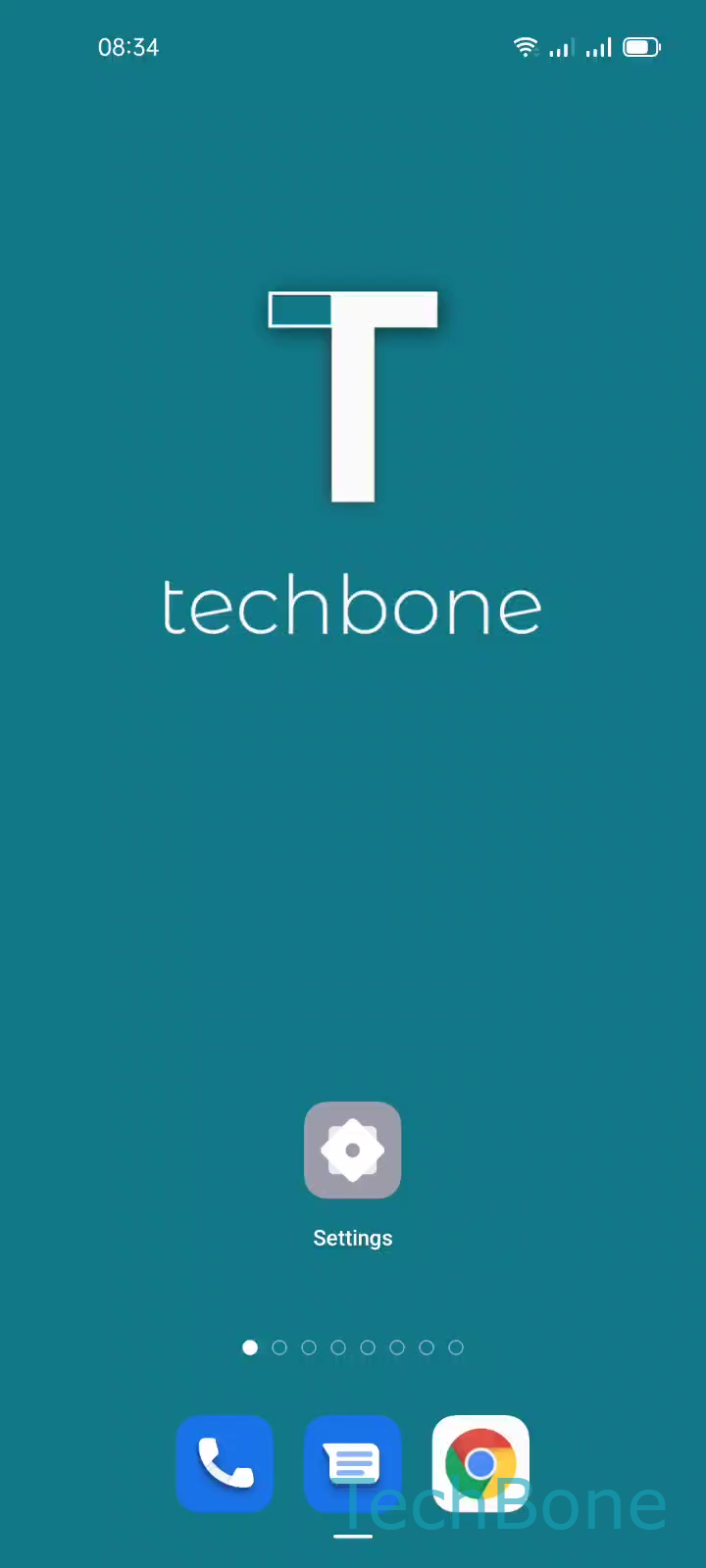
Step 1 of 4: Tap on **Settings**

1

Tap on Settings

Live simulator

Android 11 · Coloros 11
Screen Timeout Settings – Coloros 11: step 1 – Tap on Settings
Tap on Settings
1 / 4

Scroll or use the buttons for the next step

Feedback

Was the guide correct?

Help others: confirm the path or report a problem.

101

Confirmations

Forum verified this path

Oppo

Screen Timeout Settings auf Oppo

On Oppo phones running Coloros, the screen goes dark after a short period of inactivity to reduce battery drain. This period is controlled by a single setting called auto screen off, and it applies system-wide regardless of which app is open.

If the display keeps switching off while you are reading, filming, or waiting between taps, the current value is likely too short for your habits. A longer timeout keeps the screen active but uses more battery, especially at high brightness.

Where to change it

Go to Tap on SettingsTap on Display & brightnessTap on Auto screen offChoose an Option. Coloros lets you pick a value between 15 seconds and 30 minutes.

Pick a shorter value if battery life matters more than convenience, or extend it when you frequently pause between interactions, such as while reading long articles or following a recipe.

Frequently asked questions

Yes. The display is one of the biggest power consumers, so keeping it active longer through Auto screen off increases battery drain, especially at higher brightness levels.