Skip to content
TechBone
Oppo

Oppo: Set Up Trusted Places for Smart Lock

If your Oppo phone keeps asking for a PIN or pattern even at home or in the office, Smart Lock's Trusted Places feature is probably not configured yet. Without a saved location, the phone falls back to your regular screen lock everywhere, including places you visit every day. Trusted Places keeps the device unlocked within roughly 50 meters of a spot you pick, as long as location services stay on.

4 min5 steps
Version

Step by step

1 / 5

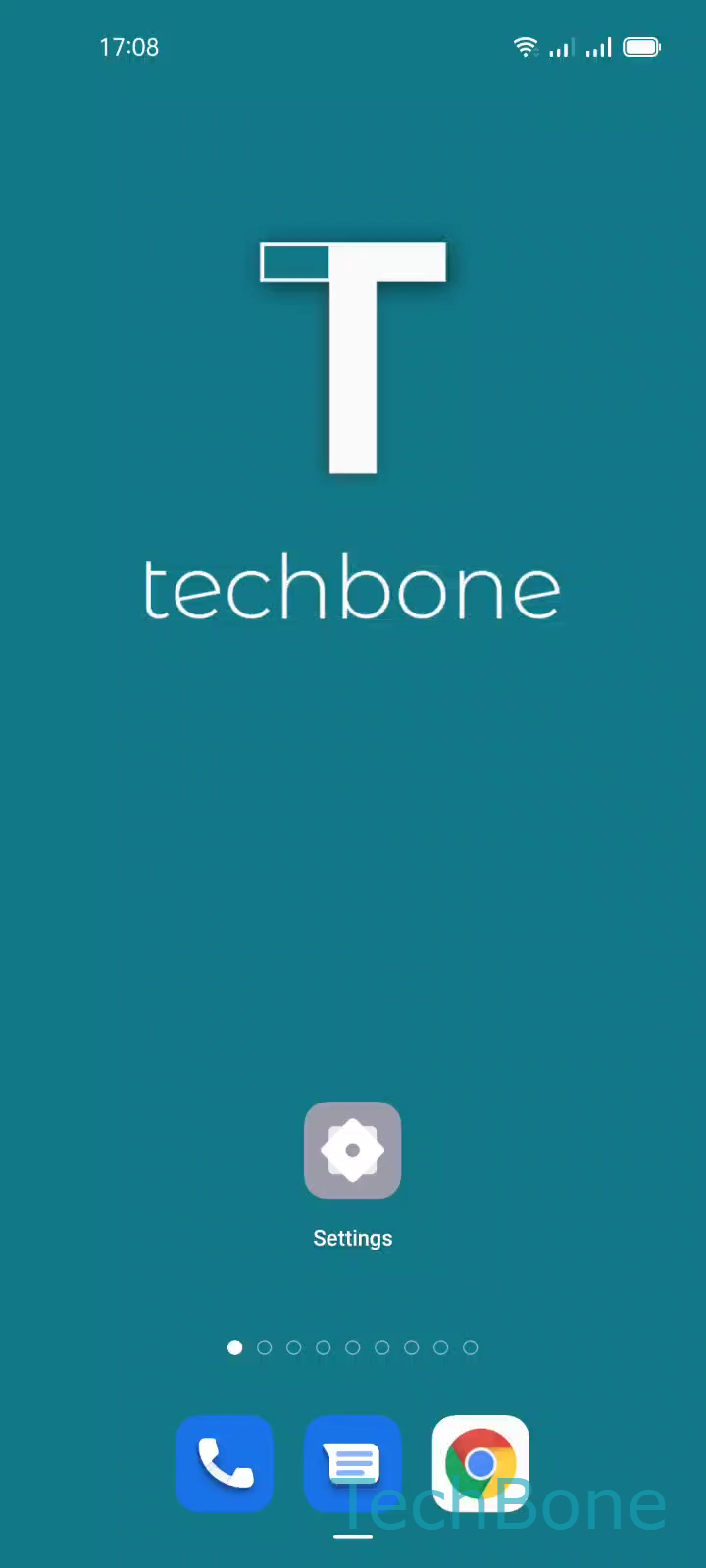
Step 1 of 5: Tap on **Settings**

1

Tap on Settings

Live simulator

Android 11 · Coloros 11
Add Trusted Places to Smart Lock – Coloros 11: step 1 – Tap on Settings
Tap on Settings
1 / 5

Scroll or use the buttons for the next step

Feedback

Was the guide correct?

Help others: confirm the path or report a problem.

57

Confirmations

Forum verified this path

Oppo

Add Trusted Places to Smart Lock auf Oppo

Trusted Places is part of Smart Lock and works with the location saved on your Oppo phone. Once a place is marked as trusted, the device skips the PIN, pattern or fingerprint check as long as you stay inside a radius of about 50 meters around that marker.

This only works while location services are switched on. If GPS or network location gets disabled, the phone ignores the trusted place and asks for your usual unlock method again.

To add a location, follow this path:

Tap on SettingsTap on SecurityTap on Smart lockTap on Trusted placesTap on Add trusted place.

After that, follow the on-screen instructions to confirm the exact spot on the map, such as your home or workplace. You can add several trusted places and remove any of them later from the same menu.

Trusted Places is convenient for locations you control, but it also means the phone stays unlocked for anyone nearby within that radius. Skip this feature for shared or public addresses where you still want the screen lock active.

Frequently asked questions

The radius depends on GPS and network location accuracy, so it can shift slightly indoors or in dense buildings. Use Tap on Trusted places to check the marker position and adjust it if the phone unlocks too early or too late.