Skip to content
TechBone
Samsung

Samsung: Change the Calendar App View

The Samsung Calendar app opens in month view by default, even if you prefer to track events by day or week. Switching to a different layout is done through a menu option that is easy to overlook the first time you look for it.

3 min3 steps
Version

Step by step

1 / 3

Step 1 of 3: Tap on **Calendar**

1

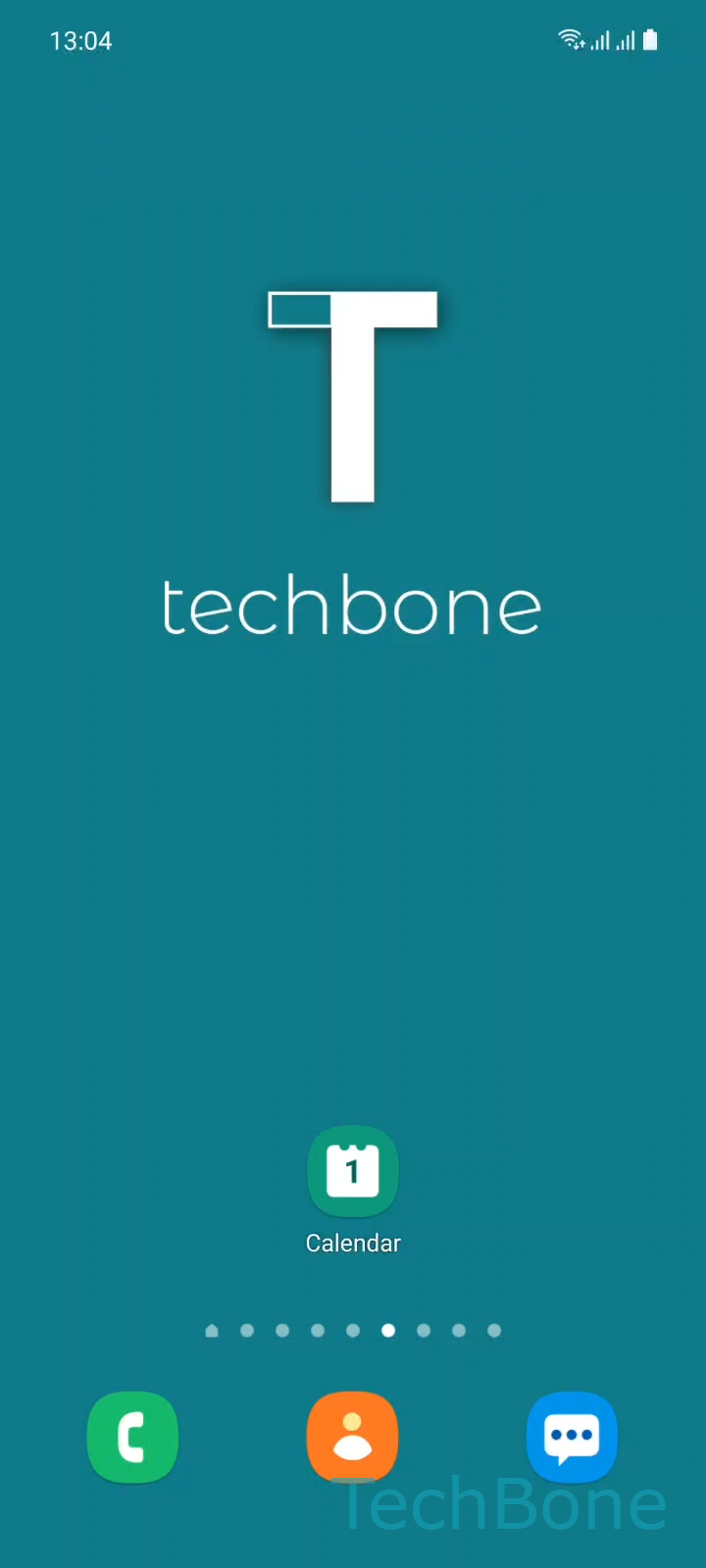
Tap on Calendar

Live simulator

Android 11 · One UI 3
Change Calendar View – One UI 3: step 1 – Tap on Calendar
Tap on Calendar
1 / 3

Scroll or use the buttons for the next step

Feedback

Was the guide correct?

Help others: confirm the path or report a problem.

102

Confirmations

Forum verified this path

Samsung

Change Calendar View auf Samsung

The Samsung Calendar app defaults to month view every time it starts, regardless of which layout you used last. This happens because the app stores a single display preference that only changes once you actively select a different view from the menu.

To switch between year, month, week and day layouts, open Calendar, then open the Menu and choose Year, Month, Week or Day.

The app saves this choice locally and reopens in the same view the next time you launch it, until you change it again or the app data gets reset.

If the calendar keeps falling back to month view after every restart, check whether a recent system update or a cleared app cache reset your saved preferences. In that case, just repeat the selection once and the setting stays until you change it manually again.

Frequently asked questions

No. The Year, Month, Week or Day selection is stored locally in the Calendar app, so you need to set it again on each device you use.

Compatible devices

Tap your device — opens its hub with matching guides.

Android 11 · One UI 3

No compatible devices are listed for this version.