Skip to content
TechBone
Samsung

Samsung: Turn Always On Display On or Off

On some Samsung phones the lock screen stays completely dark until you press the power button, even though you want the clock or notifications visible at a glance. On others, the screen glows constantly and you are trying to figure out why it never turns fully black. Both situations trace back to a single lock screen setting that controls whether the display stays partially lit.

3 min3 steps
Version

Step by step

1 / 3

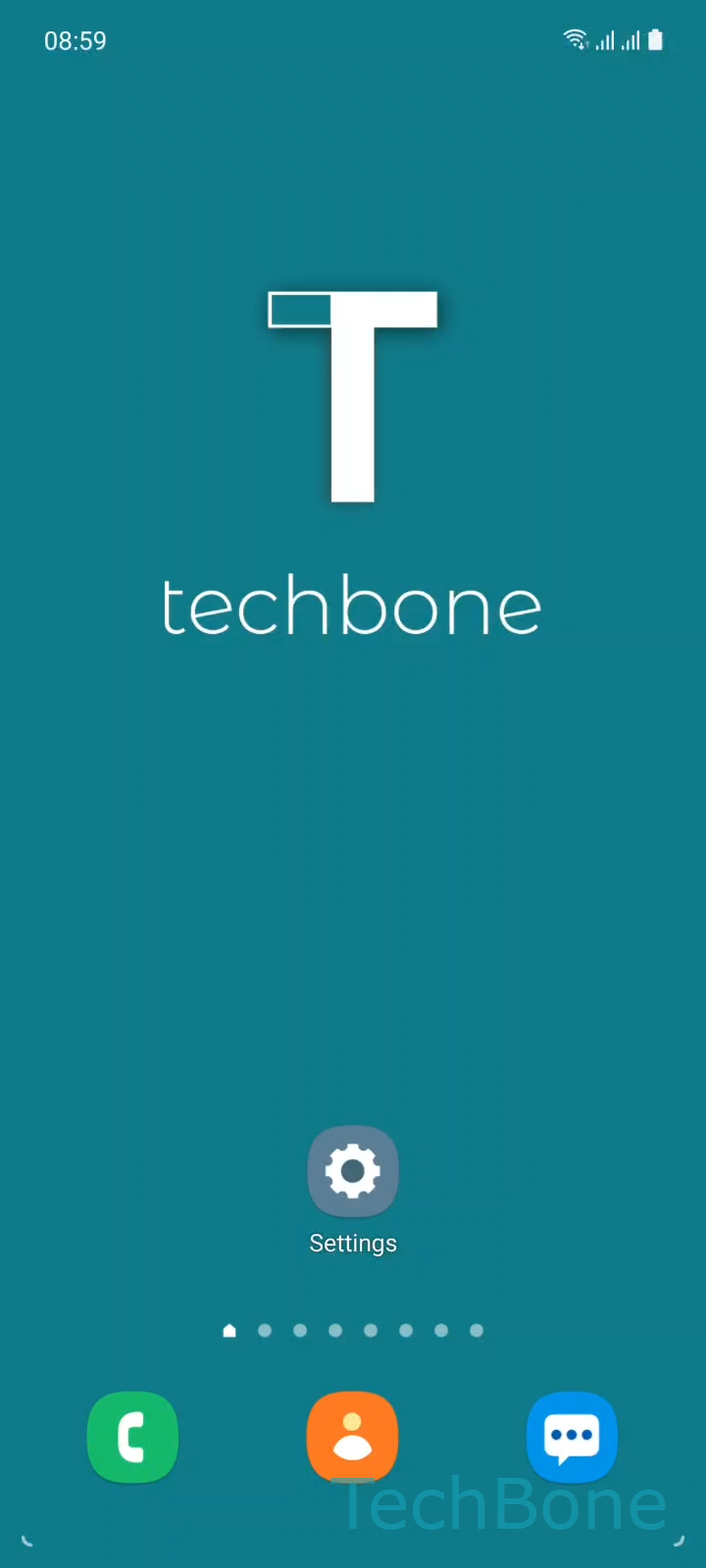
Step 1 of 3: Tap on **Settings**

1

Tap on Settings

Live simulator

Android 11 · One UI 3
Turn Always On Display On or Off – One UI 3: step 1 – Tap on Settings
Tap on Settings
1 / 3

Scroll or use the buttons for the next step

Feedback

Was the guide correct?

Help others: confirm the path or report a problem.

76

Confirmations

Forum verified this path

Samsung

Turn Always On Display On or Off auf Samsung

Always On Display keeps basic information visible on a locked Samsung phone, including the time, date, notification icons and currently playing music, without you having to wake the full screen.

The feature only lights up a small number of pixels on the AMOLED panel, so the battery impact is usually minor. On older devices or with heavy background activity, some users still notice a difference and prefer to switch it off completely.

To change the setting, go to SettingsLock screenAlways On Display and toggle the option on or off.

If battery life is the main concern but you still want quick access to the clock, look for a Tap to show or Show for 10 seconds mode instead of Always show. That keeps the panel dark until you touch it, saving power without losing the shortcut.

Turning the feature off entirely also removes any custom clock style or widget you configured for the lock screen, so check those first if you rely on them.

Frequently asked questions

It normally uses very little power because only a small part of the AMOLED panel lights up. If you still notice a drop in battery life, switch from Always show to Tap to show under SettingsLock screenAlways On Display.

Compatible devices

Tap your device — opens its hub with matching guides.

Android 11 · One UI 3

No compatible devices are listed for this version.