Skip to content
TechBone
Samsung

Samsung: Schedule a Text Message to Send Later

Need to send a text at 3 a.m. without staying awake? Samsung Messages can queue an SMS for a specific date and time so you do not have to send it manually. Once scheduled, the message waits in a separate list and goes out automatically, even if you close the app.

6 min8 steps
Version

Step by step

1 / 8

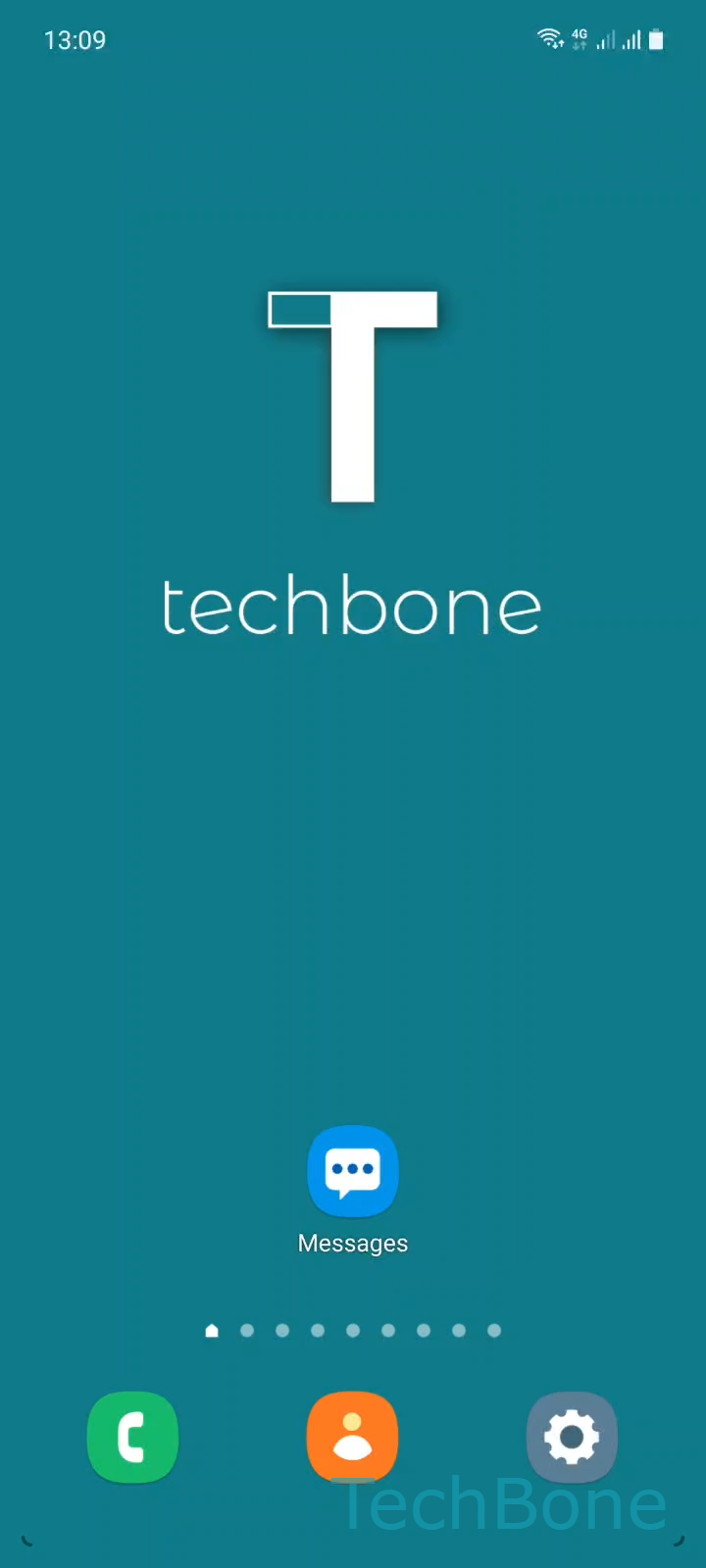
Step 1 of 8: Tap on **Messages**

1

Tap on Messages

Live simulator

Android 11 · One UI 3
Schedule a Text Message – One UI 3: step 1 – Tap on Messages
Tap on Messages
1 / 8

Scroll or use the buttons for the next step

Feedback

Was the guide correct?

Help others: confirm the path or report a problem.

77

Confirmations

Forum verified this path

Samsung

Schedule a Text Message auf Samsung

Samsung Messages includes a built-in scheduler that holds a text until a date and time you choose, instead of sending it the moment you tap Send. This helps with reminders, timed wishes, or any message you want to arrive without being at your phone.

Set up a scheduled message

Open Messages and either open an existing conversation or tap Add conversation to pick a contact. Tap Add in the text field, choose a contact, then confirm with Done. Tap Add again and select Schedule message. Set the date and hour, then confirm with Done. Type your text and tap Send to save the schedule.

The message stays saved like a draft until the chosen time arrives, then sends automatically as long as the phone is on and has network coverage. You can schedule a message up to a year ahead, so it works for long-term reminders and not only same-day texts.

If the phone is off or offline right at the scheduled time, the message goes out once it reconnects. For anything that needs to arrive within seconds of a specific moment, sending manually is more reliable than scheduling.

Frequently asked questions

A scheduled message sits in the conversation like a normal draft until it sends. You can open it before the scheduled time to change the text or the date and hour, or remove it entirely if you no longer want it sent.

Compatible devices

Tap your device — opens its hub with matching guides.

Android 11 · One UI 3

No compatible devices are listed for this version.